
Google Workspace Prerequisites and Base Integration Setup
Integration prerequisites
There are prerequisite activities that are required to be performed on the Google Workspace platform before the Google Workspace integration is configured on the ObserveID side. Below is a short overview of the prerequisites followed by the Permissions List defining levels of access.
|
Prerequisite |
Description |
|
Project for the UC’s service account |
Create a new project, or select an existing project to which the UC service account will belong. To create a project, the following roles must be granted at a higher-level resource in the hierarchy:
|
|
Service Account privileges for you |
The UC requires a service account on the Google Workspace target. To create and manage service accounts and their keys, request that your Google Workspace administrator grant the following roles at the appropriate level of the resource hierarchy where the project for the UC resides:
|
|
Service Accountfor the UC |
A service account is created within a specific project in the Service Accounts section of IAM & Admin in the Cloud Console. Once created, the name assigned to the service account becomes part of the automatically generated email address used for the Google Workspace integration setup in ObserveID. |
|
Keys for the UC’s account |
For the service account to be used by the UC, a public/private key pair must be generated. The private key (also known as a service account key) can be downloaded as a JSON file from the Keys tab of the service account in the IAM & Admin section of the Cloud Console. |
|
Domain-wide delegation within the selected access scopes |
An OAuth scope determines the level of access granted to the UC. Scopes are configured in the Domain-wide Delegation section under API Controls in the Security settings of the Admin Console. After entering the service account’s Client ID, the required scopes must be defined. For the list of applicable scopes, refer to the Permissions List below. |
|
APIsenabled for the UC’s project |
For communication with the Google Workspace target, the UC utilizes APIs. The following APIs must be enabled for the project in which the UC service account was created. These APIs can be enabled in the API Library within the APIs & Services section of the Cloud Console. The following APIs are recommended:
|
Minimum Permissions List
The list of permissions presented in the table below specifies the minimum permissions needed to allow the ObserveID Google Workspace integration fetch the Integration Data and perform the Integration Operations.
|
Permission |
Application area |
Description |
|
AdminDirectoryUser |
Access (de)provisioning |
Read/Write access to create and delete accounts. |
|
AdminDirectoryGroup |
Access (de)provisioning |
Read/Write access to add and remove members from groups. |
|
AdminDirectoryRolemanagement |
Access (de)provisioning |
Read/Write access to add and remove members from administrator roles. |
|
AdminDirectoryUserSecurity |
Account Management |
Read and manage security-sensitive properties of users. |
|
CloudPlatform |
Cloud-related data aggregation and access (de)provisioning. |
Universal GCP API access scope. |
|
AdminDirectoryOrgunit |
Data aggregation |
For reading Organizational Units (OUs) information. |
|
AdminDirectoryCustomer |
Data aggregation |
For reading Otganization and Domain information. |
|
AdminDirectoryUserschema |
Account Management |
Read/Write access to custom user schemas. |
|
GmailSettingsBasic |
Account Management |
Read/Write access to basic Gmail user settings via the Gmail API. |
|
GmailSettingsSharing |
Account Management |
Access to the control over Gmail sharing behaviors such as email delegation, forwarding. |
Connection parameters
The connection parameters specified below must be populated in ObserveID for the Universal Connector to connect to the Google Workspace platform as a data source. The connection parameters are established in: ObserveID > Identity Automation > Integrations > {specific Google Workspace integration} > Details.
To create a new Google Workspace integration, click New integration in the Integrations grid, and then select the Google integration type. The Details page opens for filling out the connection parameters, described in the table below.
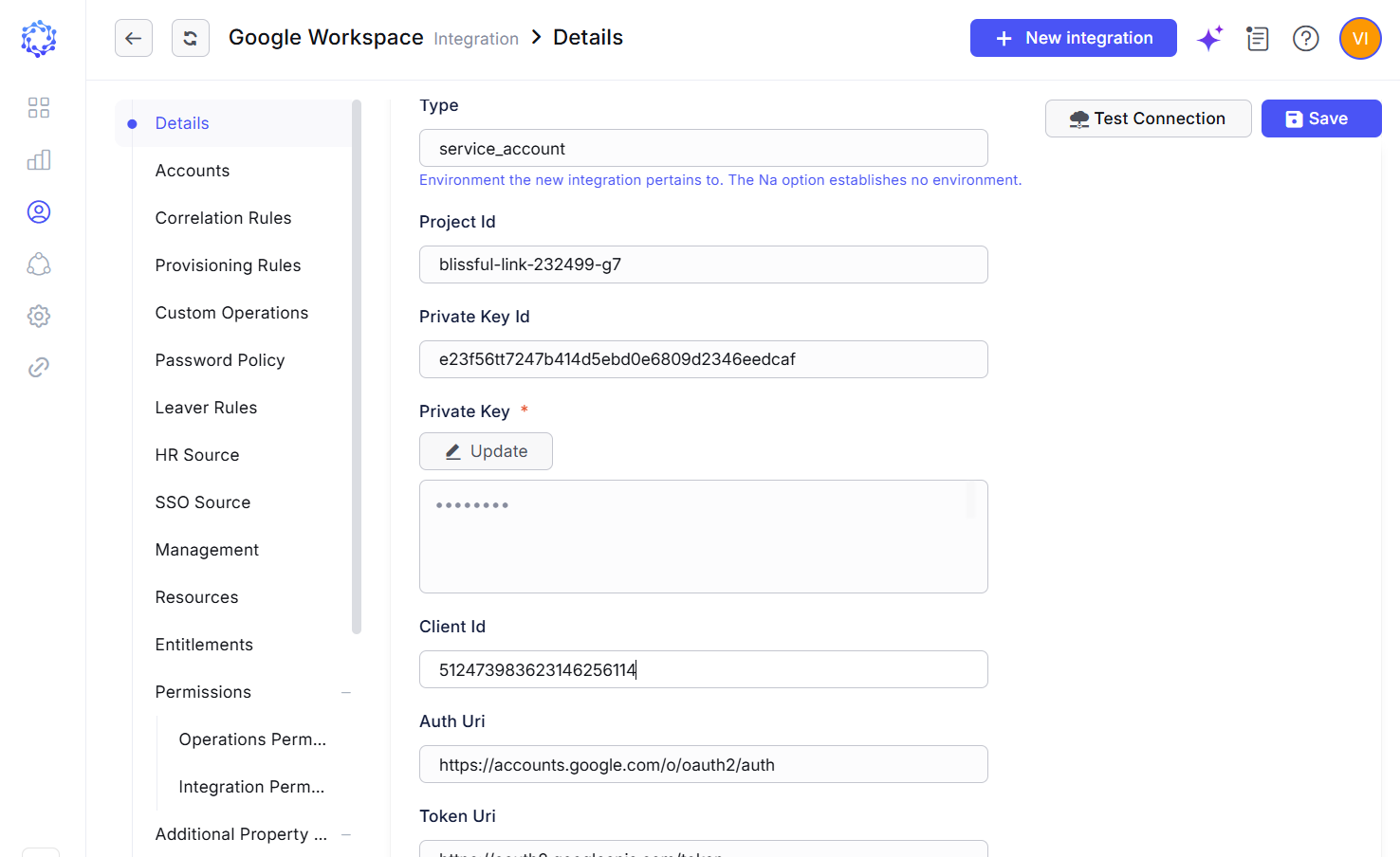 Google Workspace integration configuration
|
Connection parameter |
Description |
|
Environment Type |
Environment the new integration pertains to. The Na option establishes no environment. |
|
Integration Name |
Automatically generated name for the new integration. The name is created by combining the Integration Type with what is established as Environment Type, Alternate Name, and Description for the new integration. |
|
Alternate Name |
Any preferred name for the new integration. |
|
Description |
Any valid text to differentiate one integration from another. This text is displayed in addition to the integration name in several UI elements, e.g. dropdown lists, in the system. |
|
Client E-Mail |
This is the service account email, which is automatically generated when the service account is created in Cloud Console > IAM & Admin > Service Accounts. The service account must be created for the UC within one of the organization’s projects in the cloud. |
|
Domain |
This is the domain name configured for Workspace, which serves as the directory of users for the organization in the cloud. The domain can be found in the Admin Console under Account > Domains. Users from this domain are retrieved by the UC as part of the integration data. |
|
Admin E-Mail |
The email address of the Admin Console administrator to whom the UC is delegated for accessing user data across the organization. |
|
Log Source Resource Name |
The scope of resources used to store log items for the Text Log Session Recording feature. When multiple resource names are specified, they must be separated by a semicolon. This allows log items from different log sources to be aggregated within a single integration. As log storage can be organized in various ways, each scenario should be evaluated individually. The guidance below provides general format recommendations for specifying a log source based on the resource type:
|
|
Type |
Identifies the credential type (e.g., service account key or user credentials). This value is provided in the JSON file downloaded during private key generation. |
|
Project Id |
The GCP project identifier in which the service account was created. This value defines the resource context and is provided in the JSON file downloaded during private key generation. |
|
Private Key Id |
Unique identifier of the specific key pair, as provided in the JSON file downloaded during private key generation. |
|
Private Key |
The actual RSA private key (PEM-encoded) is provided in the JSON file downloaded during key generation. A JSON key must be generated manually for the UC’s service account. Once generated, copy the contents of the private key from the downloaded file, including the markers Note: The copied key content must not contain any line breaks. If line breaks are present, they must be removed for the key to function correctly. |
|
Client Id |
Numeric ID representing the service account identity. |
|
Auth Uri |
The OAuth 2.0 authorization endpoint, which is provided in the JSON file downloaded during key generation |
|
Token Uri |
The OAuth 2.0 token endpoint, which is provided in the JSON file downloaded during key generation. |
|
Authentication Provider x509 Certificate Url |
The URL for Google’s public certificates, used to verify tokens issued by Google and provided in the JSON file downloaded during key generation. |
|
Client x509 Certificate Url |
The URL to the public certificate of your service account, used to verify JWTs signed by your service account. The URL is provided in the JSON file downloaded during key generation. |
|
Universe Domain |
The API domain namespace. By default, the following domain can be used: |
|
Login URL |
The URL should be the one used by identities to log in to Google Workspace. By default, the following URL can be used: https://workspace.google.com |
|
Is Readonly |
If enabled, the integration operates in data import–only mode, and the access scopes are limited to those required for reading integration data. If disabled, the integration supports read/write capabilities, performing both data aggregation and access provisioning and deprovisioning. |
|
Should Load Full Projection |
If disabled, only default account properties are retrieved during data aggregation. If enabled, all user data is loaded, including custom and user-defined attributes. Disabling full projection improves the performance of the Data Import task and helps prevent the occurrence of corrupted user data. |
|
Load Cloud Data |
If disabled, only the Google Workspace dataset is aggregated in accordance with the Google Workspace schema and made available for management. If enabled, Google Cloud resources and entitlements are included in the integration data and provisioning operations. These resources may include the organization, folders, projects, virtual machines, databases, and other cloud assets. Entitlements include IAM roles, which govern access to cloud resources. |
Once the Details are filled out, remember to click Save. And then to click Test Connection. Both should be successful. Otherwise, use the Access Log to troubleshoot the configuration.
Initial data load
After the connection parameters are established for Google Workspace in ObserveID, and the connection test is successfully completed, next is the first load of data. It allows the systems to set up an initial point starting from which it is possible to determine and synchronize deltas later. For what data is loaded, refer to the schema of Google Workspace integration data.
A Data Import task is used to perform the initial data load as well as all subsequent data imports.
The Data Import task for the Google Workspace integration is created automatically when the integration is saved. If required, the task can also be created manually. To execute the Data Import task, navigate to:
- ObserveID > Identity Automation > Workflows > Tasks
The Data Import task is considered successfully completed when the integration data (including accounts, entitlements, resources, and associated properties) is imported and becomes available within the Google Workspace integration in ObserveID.