
Local Users and Authentication
Access to ObserveID requires an identity associated with an eligible local user account, an approved authentication method, and the appropriate local role assignments.
Depending on your organization’s policies and use of ObserveID for identity governance and administration (IGA), identity and access management (IAM), or privileged access management (PAM), an identity can be governed without being granted access to ObserveID itself. ObserveID can manage the identity’s accounts and access across connected systems without creating a local user account for that identity. To access ObserveID, the identity must have an associated local user account and the required authorization.
Prerequisites for sign-in
An identity must meet the following requirements to access ObserveID:
- Local user account: The identity must have an associated local user account that is enabled for access, regardless of the authentication method.
- Local role: The associated local user account must have at least one local role that grants access to ObserveID. Assigned roles determine the resources and operations available after sign-in.
- SSO account: For single sign-on (SSO), the SSO source integration must be configured and enabled. The identity must own an account of type User in that integration. No additional accounts of type User from the same integration may be associated with the identity.
- Local sign-in identifier: ObserveID uses the email address configured in the identity’s Email field as the username for the associated local user account. The username serves as the account identifier for local authentication and is not configured independently. Username matching follows the application’s case-sensitivity rules.
Depending on your organization’s authentication policies, users may also need to register an approved authentication method and complete multi-factor authentication (MFA).
Review the local user account
An administrator can check whether an identity has an associated ObserveID local user account on the identity’s Details page. The Local User field displays the associated account’s name.
The local sign-in identifier is displayed in the Administration area, which requires the appropriate permissions. This identifier is derived from the identity’s E-mail field and is not configured independently. The identity’s email address can therefore be used as a reference.
An associated local user account is required for access to ObserveID, whether the user authenticates locally or through an external identity provider. Successful authentication by an external provider does not grant access to ObserveID if the identity has no associated local user account.
The following figure shows an identity with an associated local user account.
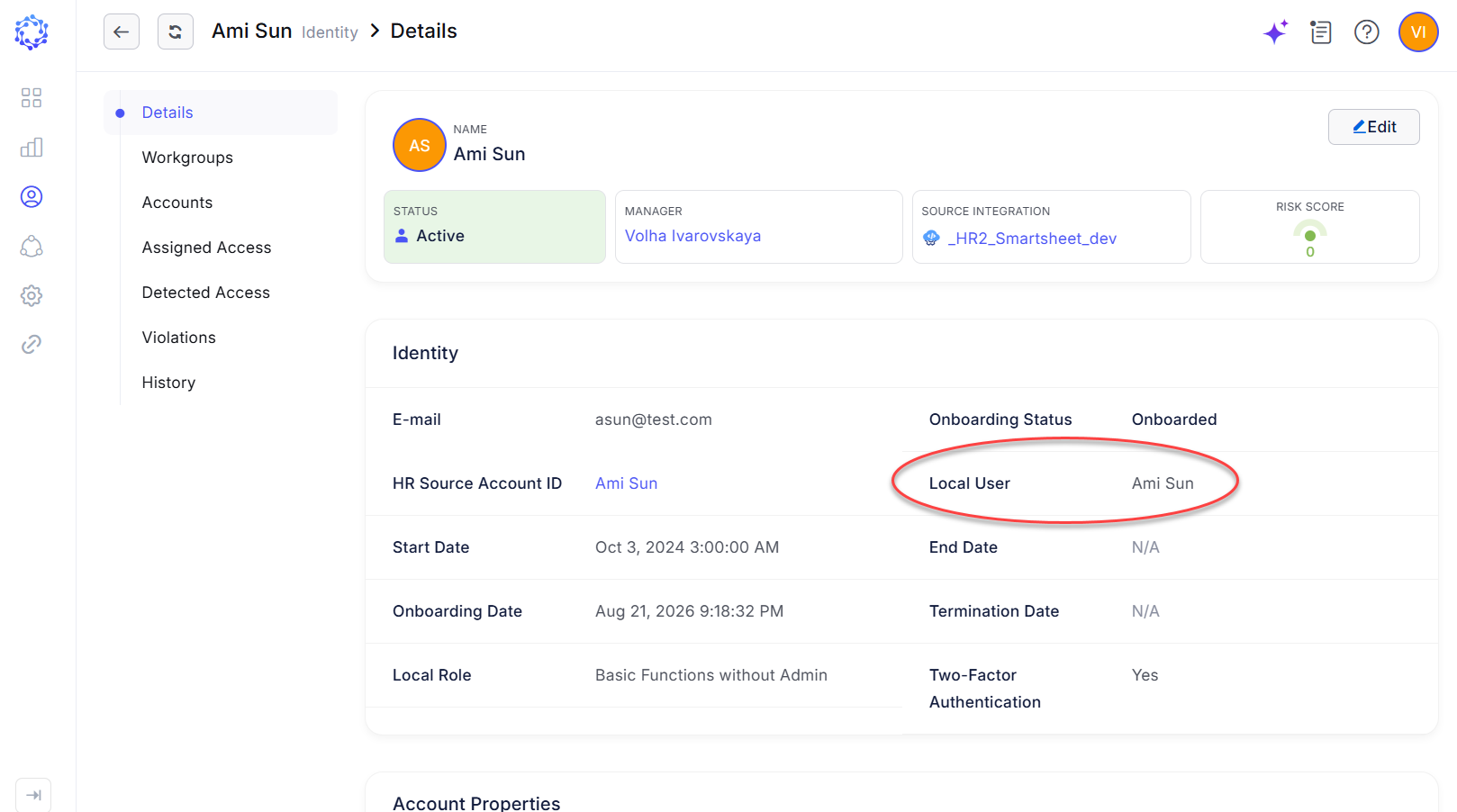 Identity associated with a local user account
Review local users in the Administration area
Administrators with the required permissions can review local user accounts in the Local Users grid at Dashboard > Administration > User Settings.
The grid displays all existing local user accounts. When an identity is offboarded, its associated local user account is deleted. If an identity is created or reinstated, a local user account is created if the identity meets the applicable local user creation criteria.
The grid includes the following columns:
- Name: The local user’s display name, which matches the identity’s Name field.
- E-mail: The local sign-in identifier, derived from the identity’s E-mail field. This identifier is used for password-based local authentication when that method is enabled and permitted for the account.
- Is Active: Indicates whether the local user account is enabled for sign-in. An inactive account cannot sign in to ObserveID. An active account remains subject to applicable authentication requirements, lockout restrictions, and authorization checks.
- Lockout Enabled: Indicates whether account lockout protection is enabled. When enabled, three consecutive failed authentication attempts trigger a temporary lockout for the configured duration.
- Roles: Lists the local roles assigned to the account. These roles determine the user's permissions within ObserveID.
- Two Factor Enabled: Indicates whether the local user account is enrolled in multi-factor authentication (MFA).
A local user account is required for access to ObserveID, but its existence does not grant permissions. Access to application resources and operations also requires the appropriate local role assignments. For example, a user may authenticate successfully through an external identity provider but still be denied access to ObserveID if the associated local user account lacks the required roles.
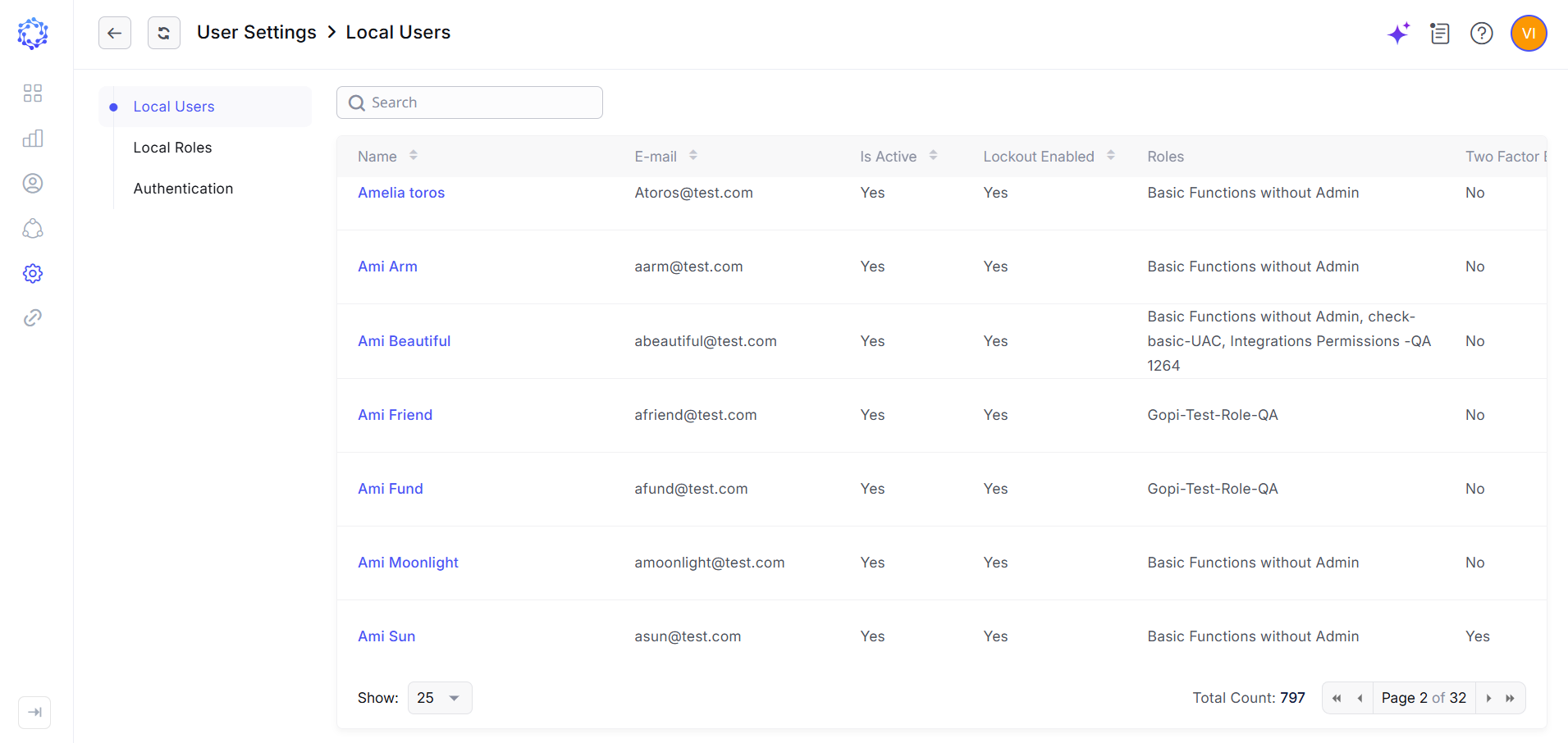 Local Users grid
Create a local user account
ObserveID creates local user accounts automatically during an Identities Update request. This process evaluates and updates multiple aspects of an identity, including whether a local user account needs to be created. If the identity meets the applicable creation criteria and does not already have an associated local user account, ObserveID creates one.
Administrators cannot create local user accounts manually. Account creation is governed by the configured identity lifecycle rules as part of the joiner-mover-leaver (JML) process. When an identity is reinstated after its local user account has been deleted, ObserveID creates a new local user account. The new account is associated with the reinstated identity; it does not restore or reuse the previously deleted local user account.
The following figure shows a request preview indicating that a local user account is scheduled for creation.
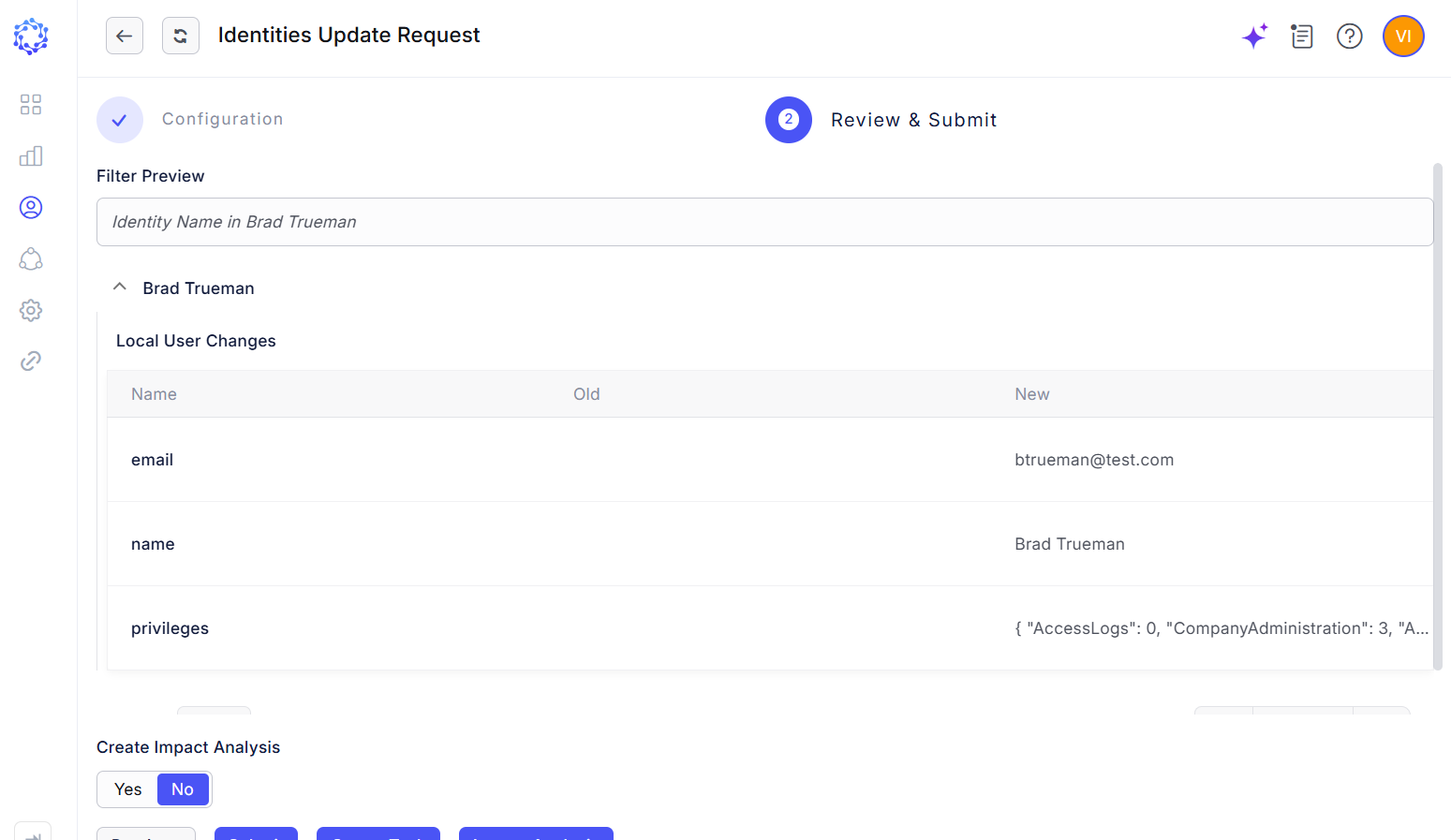 Local user account creation in an Identities Update request
Delete a local user account
ObserveID deletes an identity’s associated local user account automatically during an Offboarding request, removing the account used to access ObserveID.
Local user account deletion is governed by the configured identity lifecycle rules as part of the joiner-mover-leaver (JML) process. Offboarding can be initiated by a configured lifecycle event or an emergency operation that triggers the same Offboarding request. Administrators cannot delete local user accounts manually.
The following figure shows a request history log indicating that a local user account has been deleted.
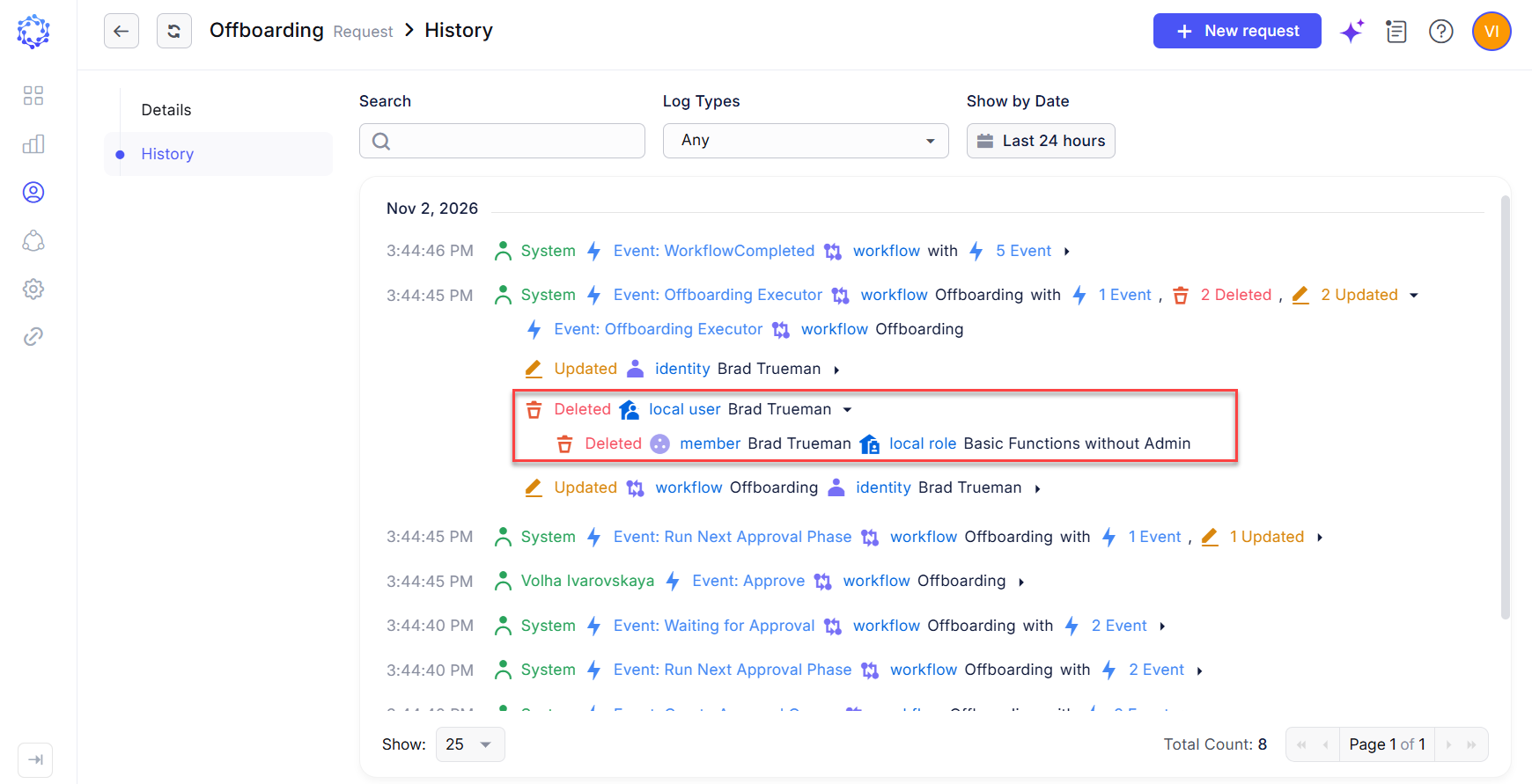 Local user account deletion in an Offboarding request
SSO authentication
During onboarding or reinstatement, ObserveID provisions access to connected applications according to applicable identity lifecycle rules and role assignments. This process may include creating an account in a connected system configured as an SSO Source.
The connected system serves as an external identity provider (IdP), authenticating users for ObserveID through an established SSO trust relationship. Successful SSO sign-in requires the appropriate federation configuration, identity matching rules, and access policies to be configured in both systems.
To sign in to ObserveID through an external identity provider, the identity must own an eligible account in the configured SSO Source integration. An Identities Update request must also have created the associated local user account, and all other sign-in and access requirements must be satisfied. The identity's assigned local roles determine the user's permissions within ObserveID.
If an SSO account was not provisioned during onboarding, an administrator can request its creation through a Permanent Access request, subject to the applicable approval and provisioning processes.
Alternatively, if an assigned role grants access to the account, an Identities Update request can evaluate the identity's role-based access requirements and initiate the necessary provisioning.
Verify SSO account eligibility
When troubleshooting an SSO sign-in failure, first verify the type and number of accounts associated with the identity in the relevant SSO Source integration. ObserveID requires the identity to own exactly one account of type User in that integration.
This requirement applies separately to each SSO source integration. Account eligibility alone does not establish access to ObserveID. Successful sign-in also depends on the associated local user account, the external identity provider configuration, and the other applicable access prerequisites. Assigned local roles determine the user’s permissions after authentication.
Manage SSO account passwords
An SSO account belongs to the connected system that acts as the external identity provider (IdP). Its password is managed separately from the ObserveID local user password. Changing the SSO account password updates the credentials used by the external system; it does not change the ObserveID local password.
SSO authentication does not require ObserveID to retrieve or know the external account's password. During SSO sign-in, the external identity provider authenticates the user and communicates the authentication result to ObserveID through the configured federation protocol, such as OpenID Connect (OIDC) or SAML. ObserveID validates the received authentication response and uses the established identity mapping to associate the authenticated user with the corresponding ObserveID identity.
ObserveID can process password changes for accounts managed through an SSO Source integration when the integration supports password management and the operation is configured and permitted. This capability is separate from SSO authentication and does not require ObserveID to retrieve the external account's existing password.
Password change requests
Password changes are initiated through a Password Change request, available under Requests > New Request or through a configured Dashboard shortcut. The request specifies the Beneficiary, the SSO Source integration, and the account whose password will be changed. The beneficiary is the identity for whom the request is submitted. Requests on behalf of another identity require the appropriate permissions.
The available password policies depend on the integration configuration and the policies supported by the connected system.
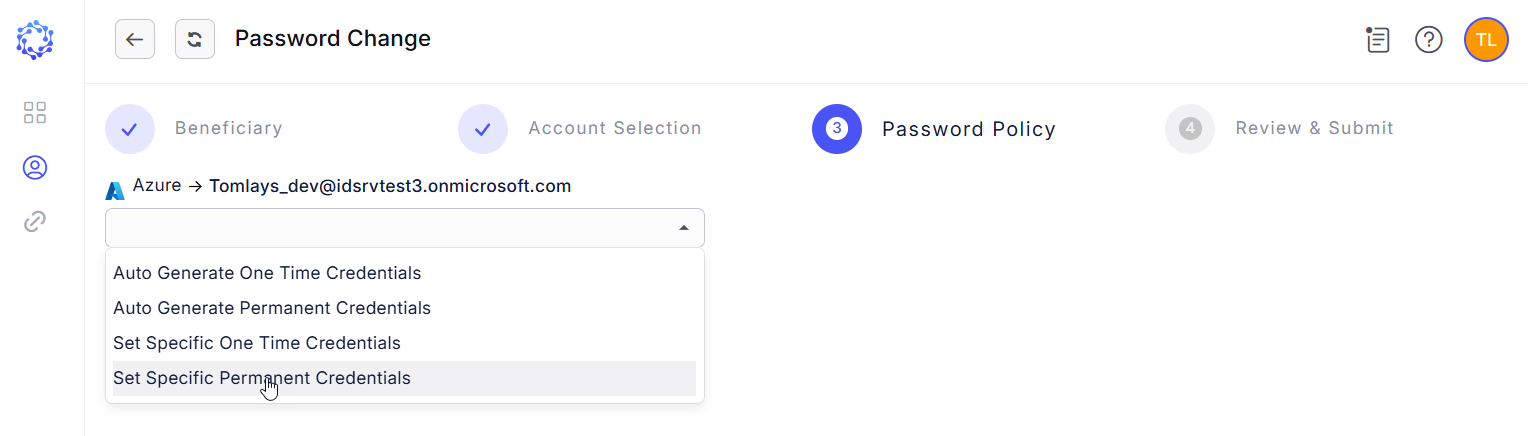 Change Password selection
After submission, the request follows the applicable approval and execution process. A status of Successfully Completed indicates that ObserveID has completed the configured password change operation. Subsequent authentication remains subject to the external identity provider’s policies, including MFA and account restrictions.
Access to account passwords
Where credential retrieval is supported and authorized, signed-in users can view or copy passwords only for their own accounts through My Access > Accounts by selecting the account’s Check Out action. Password retrieval through this self-service interface is limited to accounts associated with the signed-in identity and may include SSO accounts and other integration accounts.
Checkout is subject to the configured access controls. If an ITSM ticket is required, the requester must provide the ticket ID before proceeding. The Credentials dialog opens after the applicable checkout requirements have been satisfied.
Eligibility to use an account for SSO does not automatically grant permission to retrieve its password. Administrators should permit credential retrieval only where required for the user’s work and apply the relevant checkout controls.
Configure password change notifications
ObserveID can send an email notification about an account password change according to the configured notification rules. Depending on the selected template and available variables, the email may also include the newly assigned password. Notification content and recipient selection must be considered together. If the template includes a password, every configured recipient may receive that credential. Limit credential delivery to authorized recipients and use delivery protections appropriate to the organization’s security requirements.
Configure the email template
Configure the template under Administration > Configuration Settings > E-mail Templates. Use the horizontally scrollable template selector at the top of the page to select Account Credential Notification.
The variables included in the template determine which account details appear in the generated email. Include only the information needed for the notification purpose.
The following figure shows an example of the template configuration.
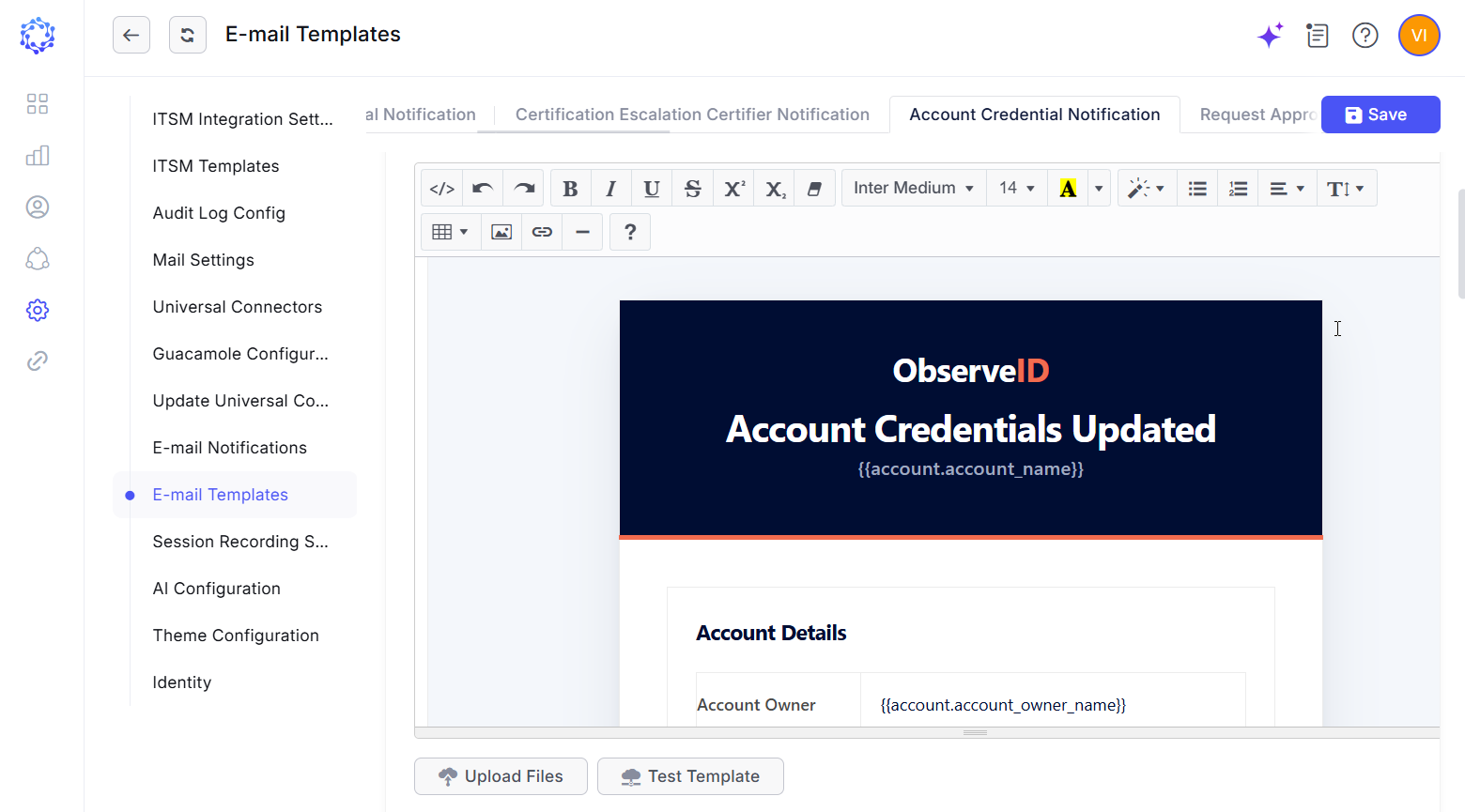 Account Credentials Notification email template
Configure notification events and recipients
Configure notification events and recipients under Administration > Configuration Settings > E-mail Notifications. Use the horizontally scrollable notification settings selector at the top of the page to select Account Credentials.
The configuration includes the following options:
- Source Requests: Select Password Change to associate the notification rule with password change requests. Notification delivery depends on the applicable execution conditions.
- Integrations: Select the relevant SSO Source integration.
- E-mail Recipients: Select the identity as the beneficiary of the password change request, the identity’s manager, or both.
- Additional Recipients: Select other identities in ObserveID, such as administrators, help desk personnel, or IT managers.
- Credential E-mail Template: Select the default template or another template configured for this notification.
- Email Property: Specify an HR source account property containing the destination email address to use instead of the identity’s email address.
- Account Filters: Optionally, restrict notification delivery using the available criteria for the account, integration or account owner.
Use these settings together to define which requests and accounts qualify for notification, who receives the email, and which template supplies its content.
The following figure shows the event and recipient configuration.
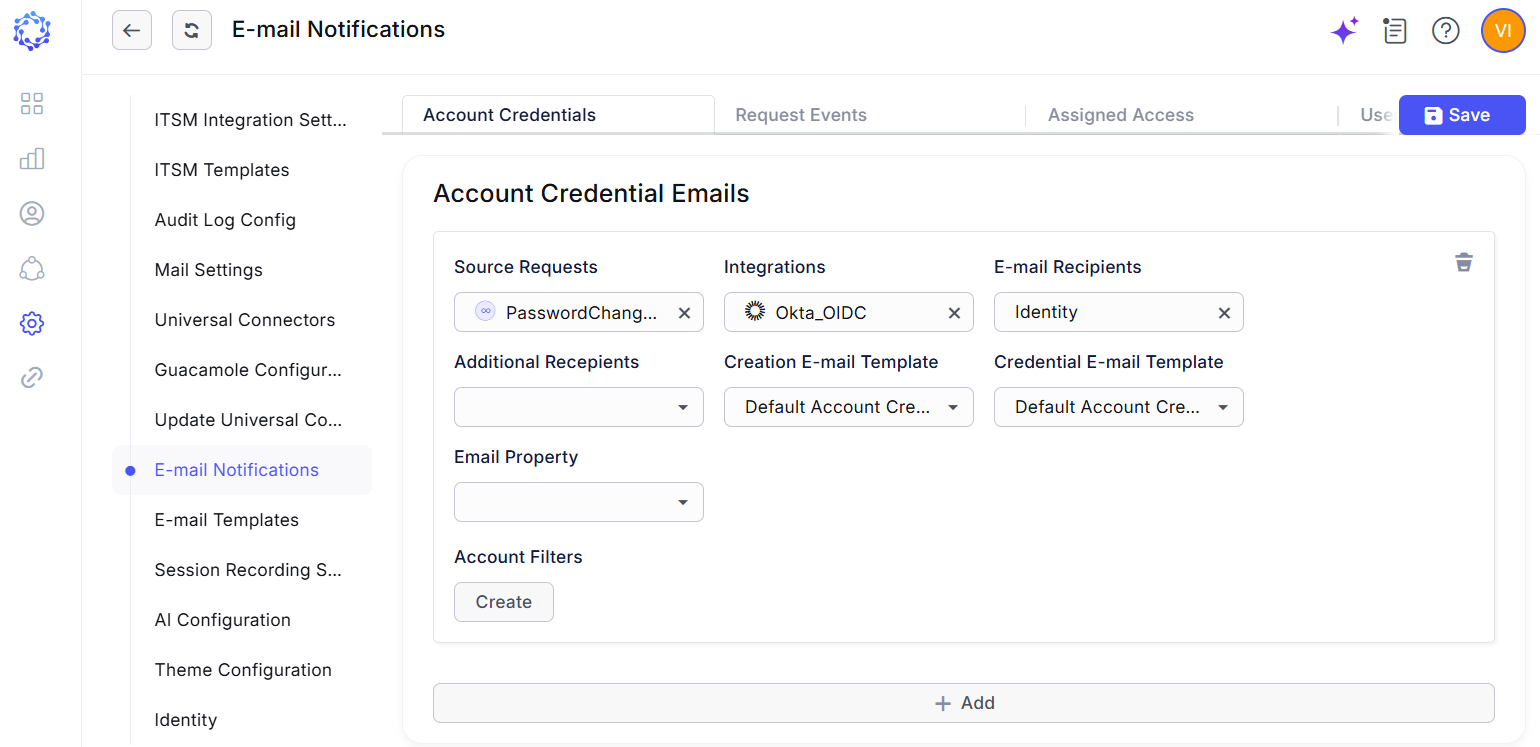 Account Credentials Notification recipient configuration
Local Authentication
Local authentication allows users to sign in directly to ObserveID using credentials associated with their local user accounts. ObserveID validates these credentials. An identity must have an associated active local user account and the appropriate local role assignments to access ObserveID. The presence of a local user account does not, by itself, mean that password-based local authentication is enabled or permitted.
Password management
When an Identities Update request creates a local user account, password setup is handled according to the applicable configuration. If the user authenticates exclusively through an external identity provider, a local password is not required for that authentication method.
For users who require password-based local authentication, the following options are available:
- Automatic password generation: ObserveID generates an initial password and sends a notification to the identity’s configured email address.
- Manual password assignment: An administrator sets an initial password and communicates it to the user through an approved secure channel.
- Required password change: The user can be required to change the initial password at the first local sign-in.
- Password policy: A password policy defines the requirements applicable to the local password.
Initial passwords must be treated as sensitive credentials. Users cannot retrieve or view their existing ObserveID local account password. If a notification includes a password, its delivery and protection must meet the organization’s credential-handling requirements.
Configure local user notification
When configured, an automated email notifies the user that a local account has been created. Depending on the notification configuration, the email may also include the initial or newly assigned password.
When configured, a User Credentials Notification email is sent after either of the following events:
- An Identities Update request creates a local user account.
- An administrator selects Resend Invitation Email for an existing local user account. This operation generates a replacement password and sends a new notification.
Configure the email template
Configure the notification template under Administration > Configuration Settings > E-mail Templates. Use the horizontally scrollable template selector at the top of the page to select User Credentials Notification.
The variables included in the template determine which account details are populated in the generated email. Include only the information required to support the intended sign-in or initial password setup process.
The following figure shows an example of the notification template configuration.
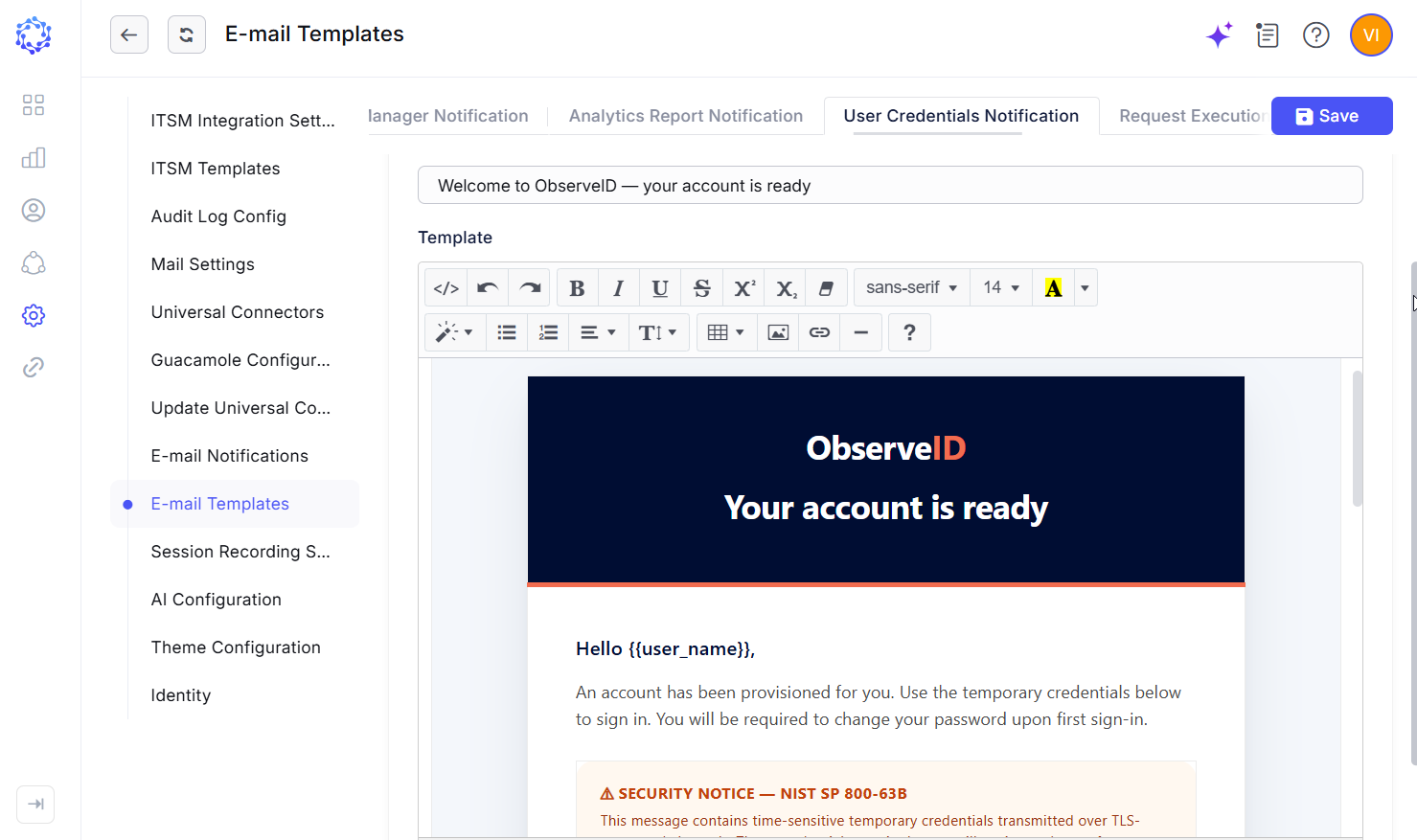 User Credentials Notification email template
Configure notification recipients
Configure the recipients of User Credentials Notification emails under Administration > Configuration Settings > E-mail Notifications. Use the horizontally scrollable notification settings selector at the top of the page to select User Credentials.
The User Credentials notification configuration includes the following options:
- E-mail Recipients: Select the identity associated with the local user account, the identity’s manager, or both.
- Additional Recipients: Select other identities in ObserveID, such as administrators, help desk personnel, or IT managers.
- Email Property: Specify an HR source account property containing the destination email address to use instead of the identity’s email address.
These options can be combined with other similar notification settings to refine recipient selection.
The following figure shows the recipient configuration.
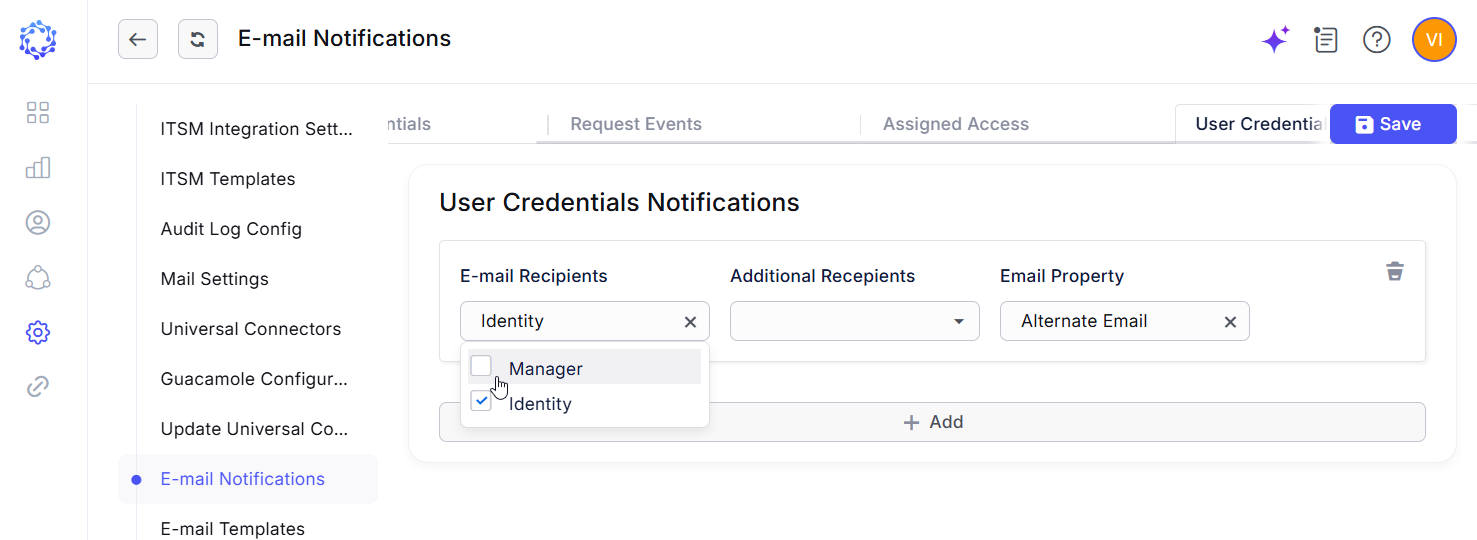 User Credentials Notification recipient configuration
Local password policy
ObserveID local account passwords must comply with the policy configured under Administration > User Settings > Authentication. These settings apply to local passwords; passwords for accounts used through an external SSO provider are governed separately.
The policy configuration includes the following options:
- Single-use generated passwords: When enabled, users must change an automatically generated password the first time they use it to sign in. When disabled, this setting does not require a password change after initial use. Password expiration and other applicable password-change requirements are controlled separately.
- Enable Password Expiration: When enabled, passwords expire after the configured number of days, and users must change an expired password when prompted during sign-in. When disabled, passwords do not expire based on age.
- Password Minimum Length: Specifies the minimum number of characters required in a password.
- Password Requires Number: When set to Yes, passwords must contain at least one numeric digit.
- Password Requires Letter: When set to Yes, passwords must contain at least one Latin alphabet letter.
- Password Requires Uppercase Letter: When set to Yes, passwords must contain at least one uppercase Latin alphabet letter.
- Password Requires Special Character: When set to Yes, passwords must contain at least one character which is not a letter and not a numeric digit.
The applicable password requirements are enforced when ObserveID automatically assigns a password during local user account creation and when users change their passwords, either through the profile menu or in response to a password-change prompt during sign-in.
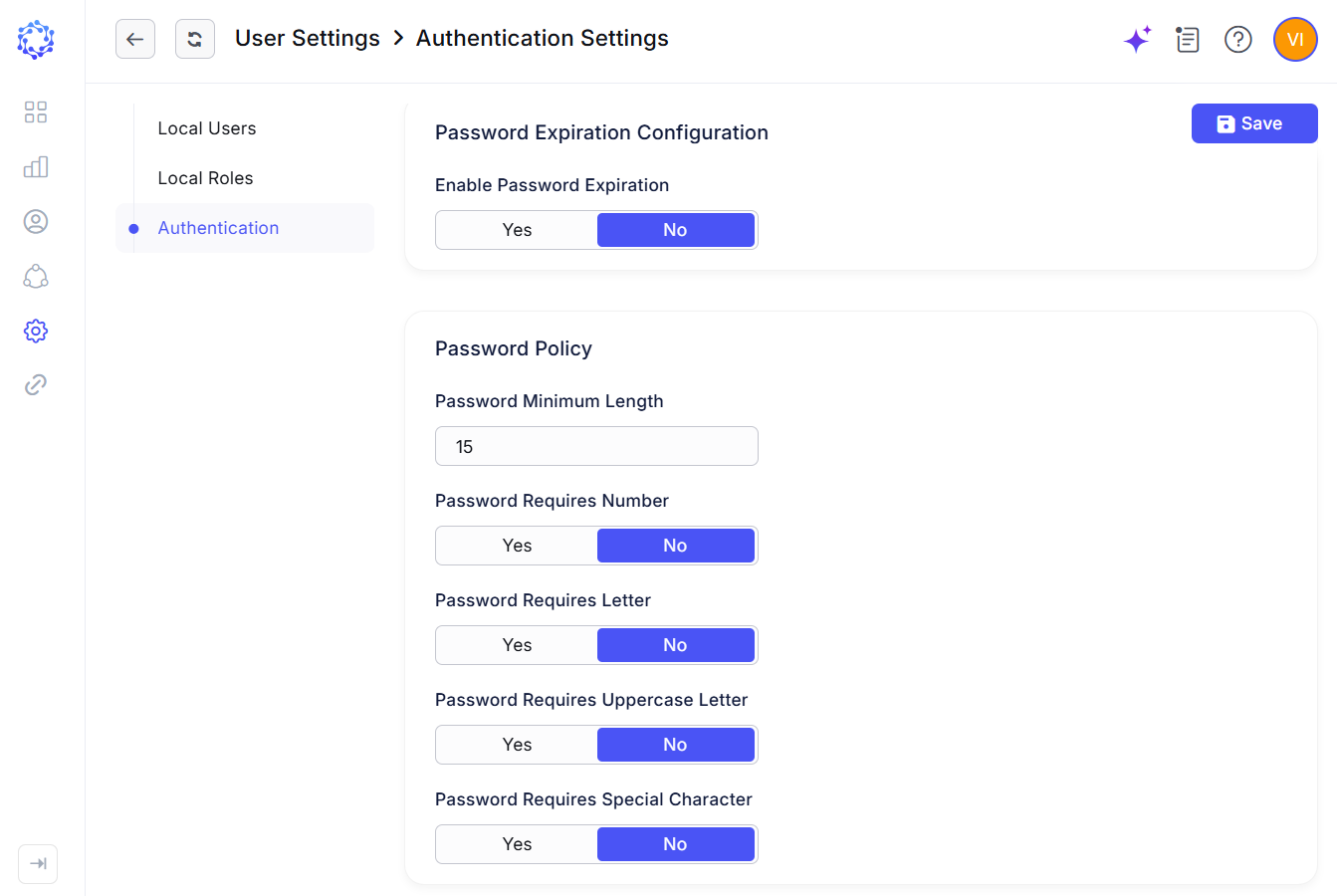 Password Policies