
MS SQL Prerequisites and Base Integration Setup
Integration prerequisites
There are prerequisite activities that are required to be performed on the MS SQL server before the MS SQL integration is configured on the ObserveID side. Below is a short overview of the prerequisites followed by the Permissions List defining levels of access.
|
Prerequisite |
Description |
|
Authentication method |
One of the following two authentication methods can be configured for ObserveID to authenticate with the MS SQL target:
The SQL Server account option allows the UC to authenticate using credentials for an account created specifically for the UC on the SQL Server. These credentials consist of a username and password. The Windows account option allows the UC to authenticate using the credentials of a Windows domain account, which the UC typically acquires during installation. For more information about configuring the Windows account for the UC, refer to the UC Installation Guide. |
|
User account privileges |
An account used by ObserveID to connect to the SQL Server can be granted either server-level access or a granular set of permissions, as outlined in the Minimum Permissions list below. The server-level access is provided with the |
|
SQL server instance configuration |
A single machine can host one or more SQL Server instances.If the SQL Server instance is named, or if multiple named instances are configured, the instance name must be provided to ObserveID as a connection parameter. If only a default (unnamed) instance is used, the instance name parameter may be omitted. In environments with multiple instances, only non-default instances require explicit instance names, while the default instance can be referenced without specifying a name. |
Minimum Permissions List
The list of permissions presented in the table below specifies the minimum permissions needed to allow the ObserveID MS SQL integration fetch the Integration Data and perform the Integration Operations.
|
Integration Operation |
Permission |
Permission Type |
Description |
|
Data Import |
|
Server role |
Default permission |
|
|
|
Server Grant |
To connect to the server |
|
|
|
Server Grant |
To pull all databases and users which belongs to the databases |
|
|
|
ServerFixedRole |
To pull server implicit entitlements. |
|
|
|
DatabaseObjectGrant |
To pull other database roles and permissions. Otherwise, the Integration Data will be excluded with all the permissions, like: CONNECT, ALTER, etc. |
|
Create an account |
|
Server Grant |
To create users, unless provided enough permissions for the Stored Procedure. |
|
|
|
Server Grant |
To create users, unless provided enough permissions for the Stored Procedure. |
|
|
|
Server Grant |
Unless the stored procedure contains the impersonation to create the user, it is not needed. |
|
Delete an account |
|
Server Grant |
|
|
|
|
DatabaseGrant |
|
|
Lock / Unlock an account |
|
Server Grant |
|
|
Grant / Revoke entitlements |
|
ServerFixedRole |
Required for granting/revoking ServerFixedRoles and permissions that are implicitly connected with such roles. |
|
Permissions listed for operations: - Data Import
|
|
|
Can be replaced with database-specific permissions, like: |
|
|
|
DatabaseFixedRole |
Needed for adding users to the database roles. Note please, that the combination of the |
|
|
|
Server Grant |
Can be replaced with the following combination of permission if partial set of the permissions are enough: - |
|
|
|
ServerFixedRole |
To enable provisioning of any server role, except sysadmin role. |
Connection parameters
The connection parameters specified below must be populated in ObserveID for the Universal Connector to connect to the MS SQL server as a data source. The connection parameters are established in: ObserveID > Identity Automation > Integrations > {specific MS SQL integration} > Details.
To create a new MS SQL integration, click New integration in the Integrations grid, and then select the MS SQL integration type. The Details page opens for filling out the connection parameters, described in the table below.
|
Connection parameter |
Description |
|
Environment Type |
Environment the new integration pertains to. The Na option establishes no environment. |
|
Integration Name |
Automatically generated name for the new integration. The name is created by combining the Integration Type with what is established as Environment Type, Alternate Name, and Description for the new integration. |
|
Alternate Name |
Any preferred name for the new integration. |
|
Description |
Any valid text to differentiate one integration from another. This text is displayed in addition to the integration name in several UI elements, e.g., dropdown lists, in the system. |
|
Host name or IP address |
Host name, or IP address of the SQL server. |
|
MS SQL instance name |
Required for the cases when the instance name is explicitly established for the server on the computer, and/or there are some instances of the server running simultaneously. In other cases, it is optional. |
|
Authentication |
One of the following authentication methods can be used to connect to the SQL Server:
|
|
Login |
The username used by ObserveID for authentication when SQL Server authentication is selected. |
|
Password |
The password used by ObserveID for authentication when SQL Server authentication is selected. |
|
Server Type |
The type of server on which the database engine operates. The UC supports administration of the following server types:
|
|
Audit File Addresses |
Used for reading Access Detection data. |
Once the Details are filled out, remember to click Save. And then to click Test Connection. Both should be successful. Otherwise, use the Access Log to troubleshoot the configuration.
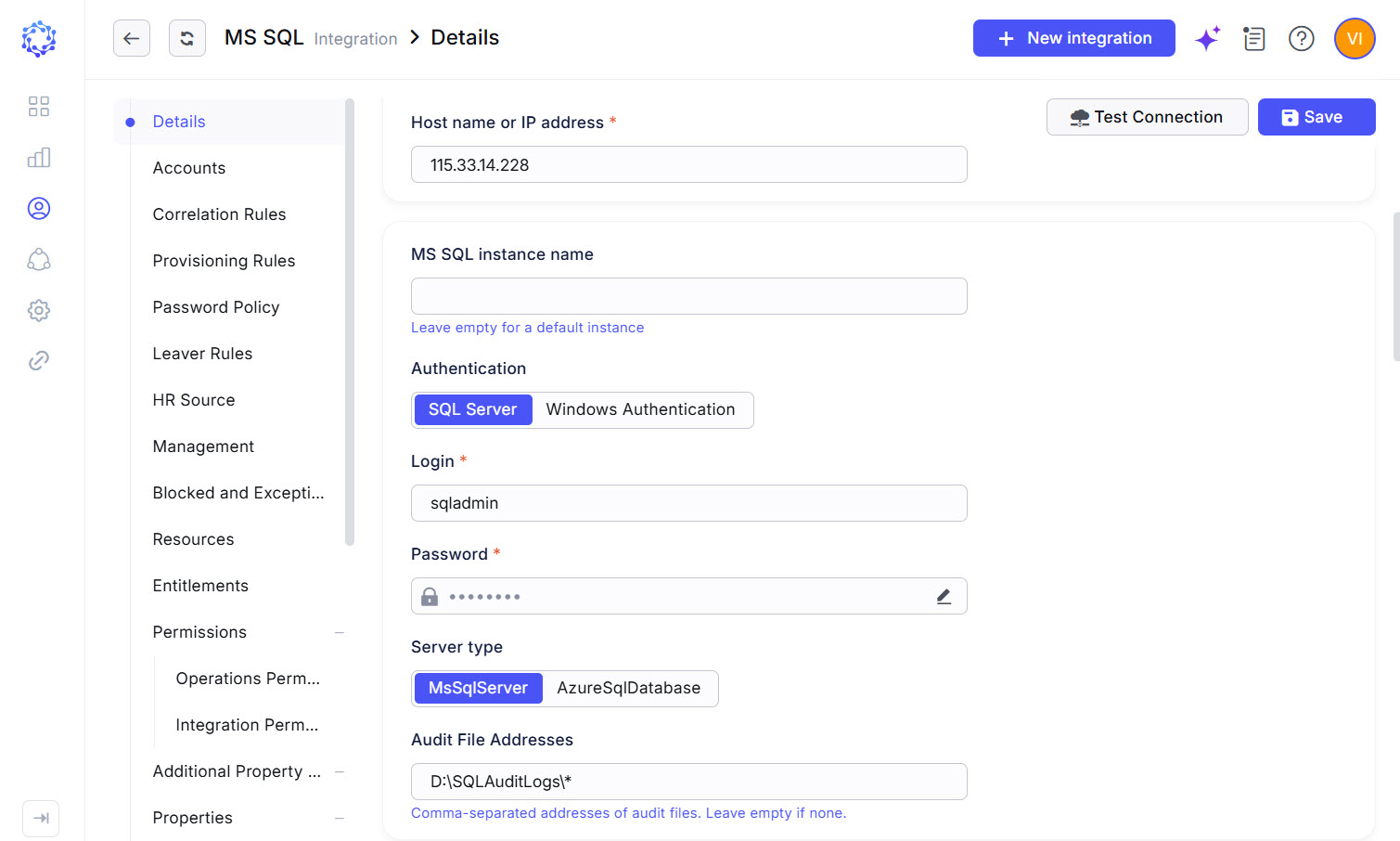 MS SQL integration configuration
Initial data load
After the connection parameters are established for MS SQL in ObserveID, and the connection test is successfully completed, next is the first load of data. It allows the systems to set up an initial point starting from which it is possible to determine and synchronize deltas later. For what data is loaded, refer to the schema of MS SQL integration data.
A Data Import task is used to perform the initial data load as well as all subsequent data imports.
The Data Import task for the MS SQL integration is created automatically when the integration is saved. If required, the task can also be created manually. To execute the Data Import task, navigate to:
- ObserveID > Identity Automation > Workflows > Tasks
The Data Import task is considered successfully completed when the integration data (including accounts, entitlements, resources, and associated properties) is imported and becomes available within the MS SQL integration in ObserveID.