
Manage Your Sign-In Methods and Recover Access
If you experience sign-in issues, lose access to a registered device, or need to change your authentication method, you may need to review the sign-in options available for your account. This section explains how to identify available authentication methods, and what options may be available to restore access or register new credentials.
Check your available sign-in methods
Having more than one available authentication method can help you maintain access to ObserveID if your preferred method becomes unavailable. Depending on your organization's configuration, the following options may be available:
- Alternative authentication method: If you normally sign in through SSO, local password authentication may provide an alternative, provided it is enabled and permitted for your account.
- Additional registered passkeys: Registering passkeys on different devices or through supported passkey providers may help you sign in if one device becomes unavailable.
- Alternative MFA verification method: If your primary MFA method is unavailable, you may be able to complete verification using another registered method, such as an authenticator app or passkey, if supported by your organization's authentication policy.
- Recovery codes: If recovery codes are available for you, you may be able to use an unused recovery code to complete the applicable verification or recovery process. See the next section for details.
The availability of these options depends on your organization's authentication policies and the methods already configured for your account.
If you cannot sign in using any available method, contact your administrator or IT support for assistance with restoring access or resetting your authentication credentials.
Change your ObserveID password
Depending on your organization's password policies, ObserveID may require you to change your password when you first sign in or when your password expires. You can also change your password at any time.
To change your ObserveID password:
-
Hoover over your profile icon to open the profile menu.
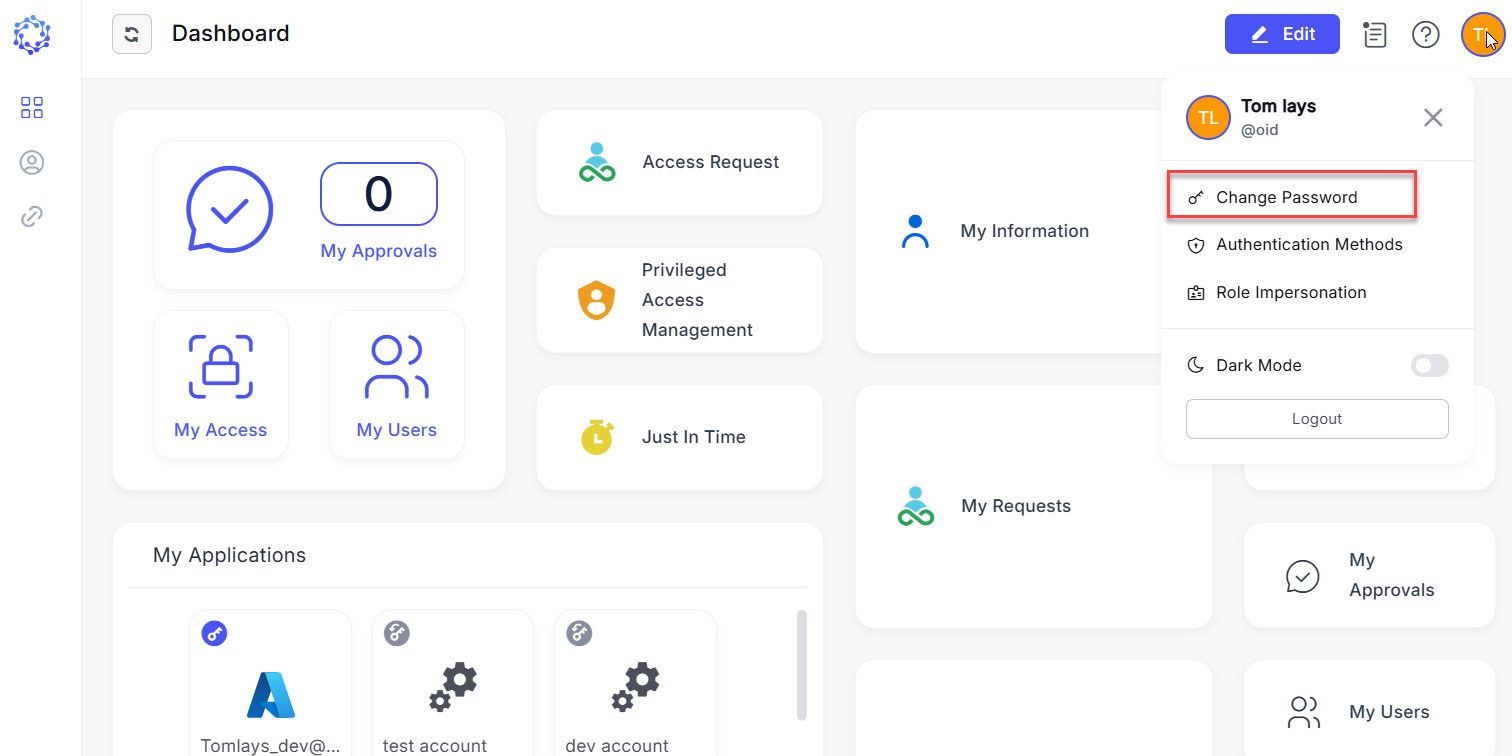 Change Password option
-
Select Change Password.
-
Enter your new password.
-
Reenter the new password to confirm it.
-
Click Save.
Your new password must meet the password policy requirements configured for your account.
Manage passkeys
In Authentication Methods, you can view your registered passkeys, rename them, or remove those you no longer need.
When you remove a passkey from ObserveID, it can no longer be used to sign in or complete MFA verification for your account. Removing a passkey from ObserveID does not necessarily delete it from your device or passkey manager. You may need to delete it separately.
If you remove all registered passkeys and your organization's authentication policy does not require MFA, you may be able to sign in using only your password, provided that password authentication is enabled for your account. Other authentication methods may remain available if configured.
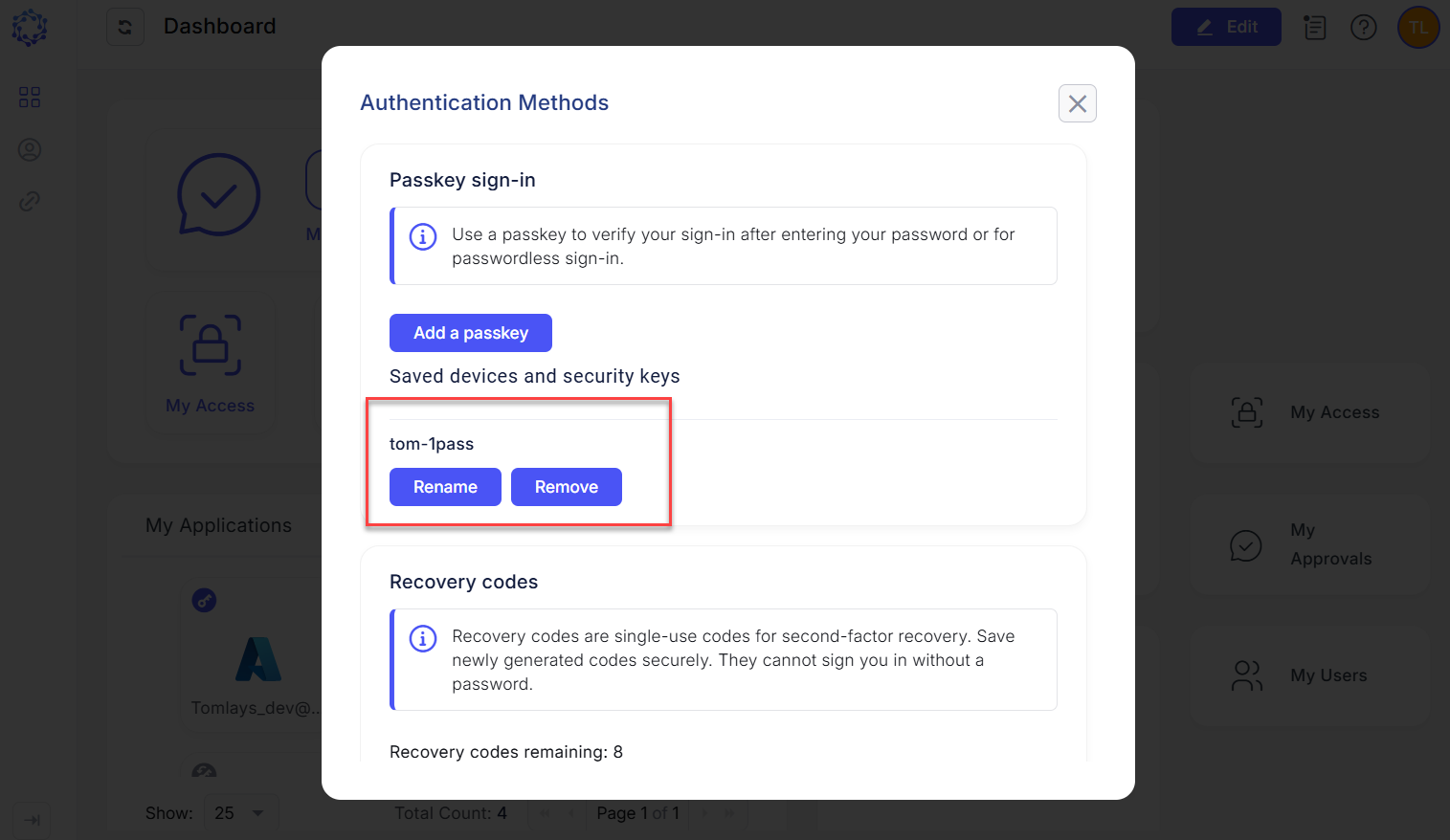 Manage Passkeys
Reset authentication methods
Reset or remove an authentication method if it is no longer accessible or if you suspect that it has been compromised or is no longer under your control. Examples include a lost or stolen device, an exposed authenticator-app setup secret, or a passkey registered on an untrusted device.
In this section, authenticator app means an application that generates time-based one-time passwords (TOTP).
To manage your authentication methods, go to Profile > Authentication Methods. The following operations are available:
- Reset Authenticator App: Invalidates the existing TOTP secret. Set up the authenticator app again to generate codes using a new secret.
- Remove a passkey: Removes the selected passkey registration from ObserveID so that it can no longer authenticate to your account. This action does not delete the credential from your device, security key, or passkey provider. Register a replacement if needed.
- Disable 2FA: Removes all registered passkeys and invalidates the TOTP secret in ObserveID. If your organization requires MFA, ObserveID prompts you to enroll a new authentication method the next time you sign in. Otherwise, the available sign-in options depend on your organization’s configuration.
For a planned device or security-key replacement, register and test a replacement method before removing the existing one, where supported. If a method may be compromised, remove it promptly.
If you cannot sign in to access these settings, contact your IT support team for account recovery.
Manage recovery codes
Recovery codes provide an alternative way to complete multi-factor authentication (MFA) when your registered authenticator app or passkey is unavailable. Recovery codes cannot be used for passwordless sign-in. You must first authenticate with your ObserveID password before using a recovery code to complete MFA verification.
ObserveID generates a set of recovery codes when you register a new passkey or set up an authenticator app. The same set of recovery codes applies to both authentication methods. When you register an additional credential, ObserveID displays the remaining unused codes. Store your recovery codes securely and separately from your password and authentication devices.
The Authentication Methods dialog, accessible from your user profile, displays the number of remaining unused recovery codes, as shown in the following figure.
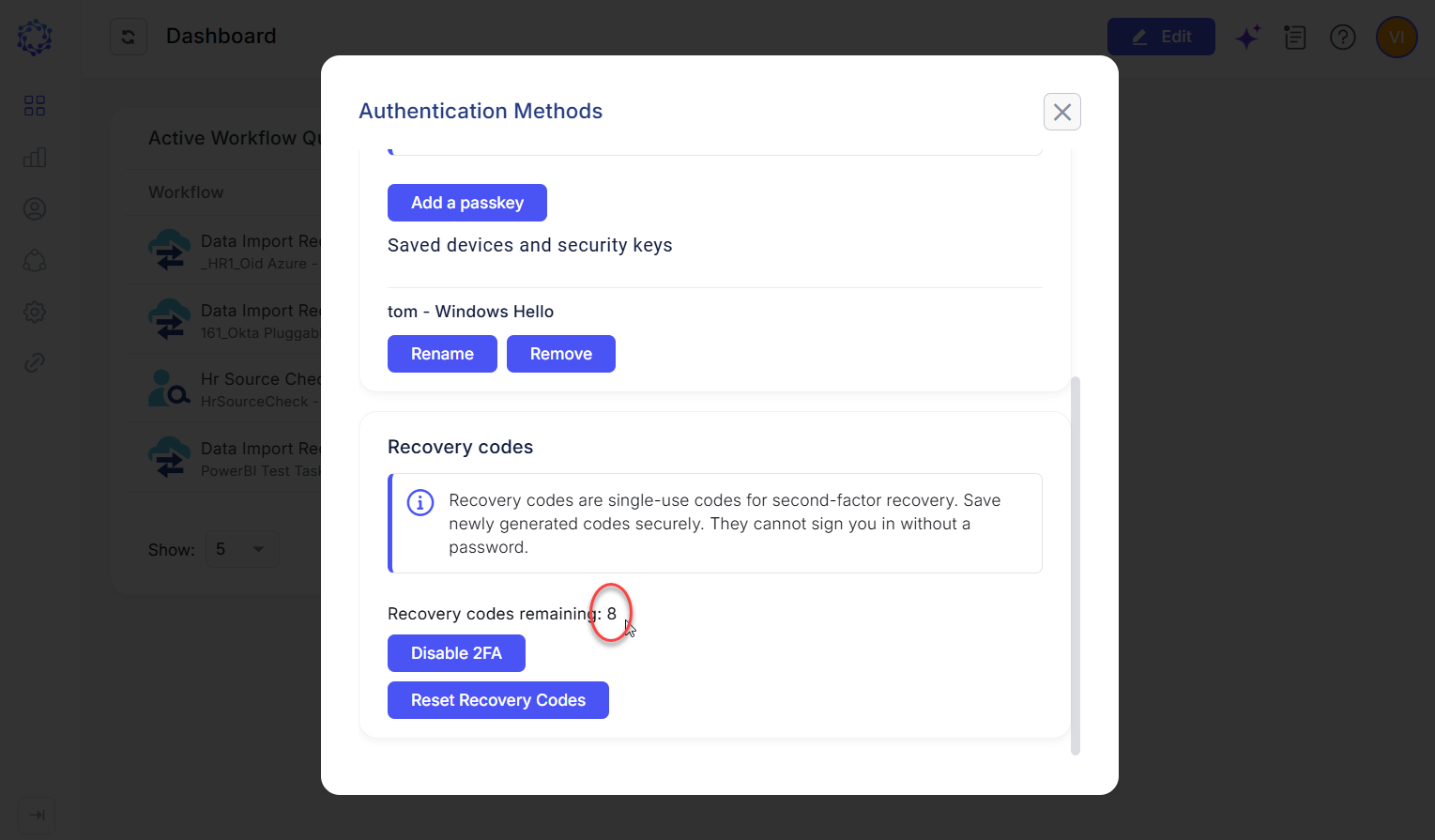 Remaining unused recovery codes
You can generate a new set of recovery codes at any time by selecting Reset Recovery Codes. Generating a new set invalidates all recovery codes from the previous set, including unused codes.
If you have used all your recovery codes, ObserveID automatically generates a new set the next time you register a passkey or set up an authenticator app.
Sign in with a recovery code
If you sign in with your ObserveID password but cannot complete the required MFA verification because your registered authenticator app or passkey is unavailable, you can use an unused recovery code.
To sign in with a recovery code:
-
Open your organization's ObserveID sign-in page.
-
Enter your identity email address and password.
-
When prompted to verify your identity using an authenticator app or passkey, select log in with a recovery code.
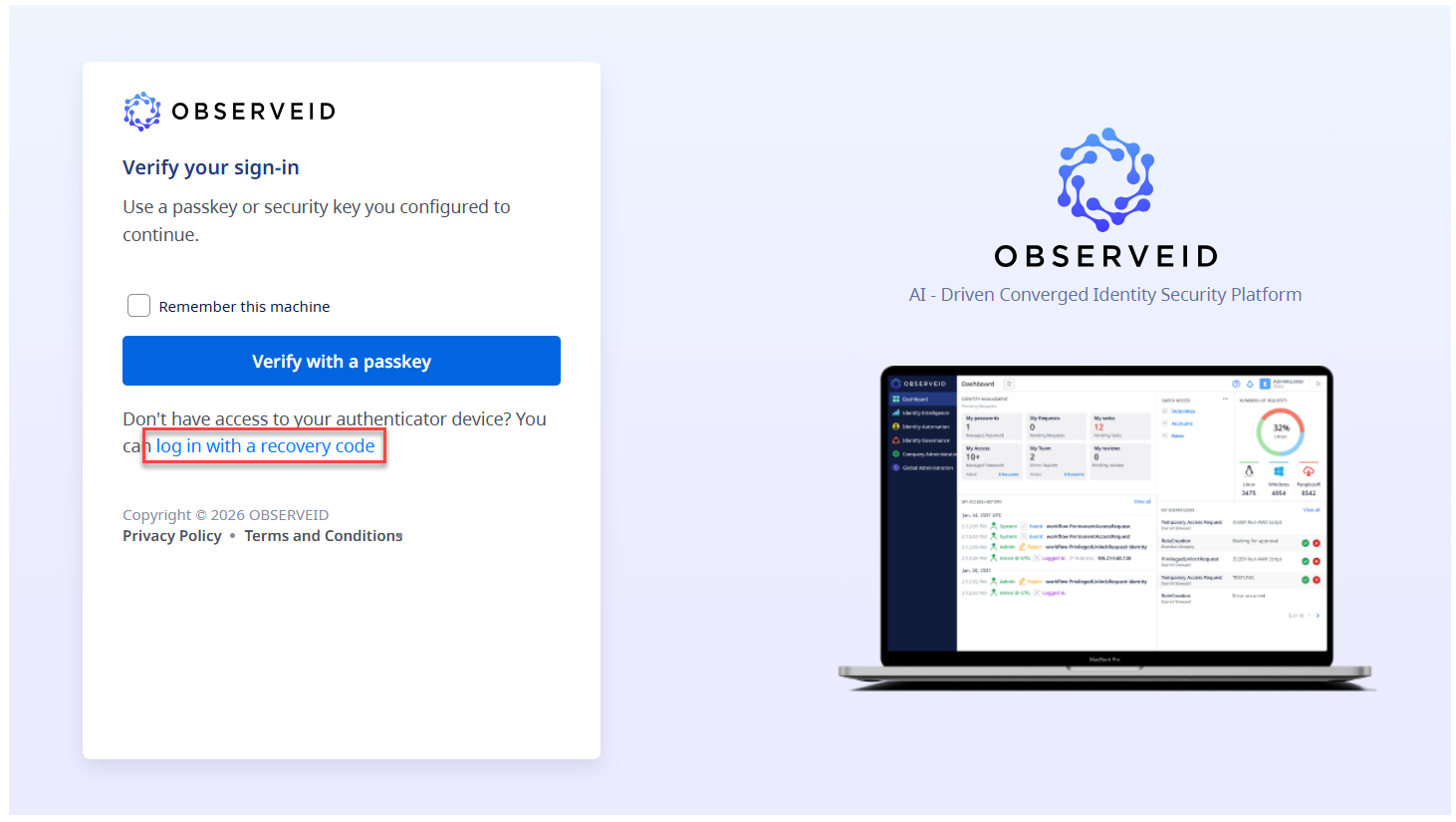 Log in with a recovery code option
-
Enter an unused recovery code from your current set.
-
Follow any remaining on-screen instructions to complete sign-in.
Important considerations
- Each recovery code can be used only once.
- Recovery codes replace the required MFA verification step, not your ObserveID password.
- Recovery codes cannot be used for passwordless sign-in.
- Generating a new set of recovery codes invalidates all codes from the previous set.
- Store your recovery codes securely and separately from your password and authentication devices.
If you cannot sign in using an available authentication method or a valid recovery code, contact your administrator for assistance with account recovery.
Get help with sign-in
If you have trouble signing in to ObserveID, use the following guidance to resolve common issues.
| Problem | What to do |
|---|---|
| You do not know which sign-in method to use. | Contact your administrator to confirm which authentication methods are available for your account. |
| Your authenticator app code is rejected. | Enter the current code from the ObserveID account in your registered authenticator app. If the code is still rejected, check that your device's date and time are set automatically. If the issue persists, use an available recovery method or contact your administrator. |
| A passkey or security key prompt is cancelled or expires. | Start the sign-in process again and complete the verification prompt before it expires. |
| Your browser or security key cannot complete authentication. | Use a supported browser and a compatible authenticator. If prompted, complete the required PIN or biometric verification. If the issue persists, contact your administrator. |
| Your usual authentication method is unavailable, or you have lost your device. | Use another registered authentication method, if available, or a valid recovery code where supported. Otherwise, contact your administrator. |
| A recovery code is rejected. | Enter an unused recovery code from your current set. Recovery codes that have already been used or replaced are no longer valid. |
| You are required to set up an authentication method. | Follow the on-screen instructions to register the required authentication method. If you can't complete the setup, contact your administrator. |
When contacting your administrator, provide the sign-in method you used and the exact error message displayed, if any. Never share your password, device PIN, authenticator setup keys, or recovery codes.