
Using Passkeys
A passkey is a digital authentication credential that lets you sign in to ObserveID. Passkeys use public-key cryptography and authentication standards developed by the FIDO Alliance and W3C. You authorize their use through an authenticator, such as your phone, computer, compatible password manager, or physical security key.
How a passkey works
When you register a passkey, your authenticator creates a pair of cryptographic keys:
- The public key is registered with ObserveID and associated with your account.
- The private key is protected by your authenticator or passkey provider and is used to prove that you control the credential.
During sign-in, ObserveID sends a fresh challenge. After you approve the request, your authenticator signs authentication data containing that challenge. ObserveID checks the response using the registered public key. The private key is not sent to ObserveID.
A passkey can be used after a password as a second authentication factor or instead of a password for passwordless sign-in. When possession of the credential is combined with required local PIN or biometric verification, the authenticator can provide multi-factor authentication within a single sign-in flow.
Where passkeys are stored
Passkeys fall into two main categories according to whether the credential can be backed up and made available on another authenticator: synced passkeys and device-bound passkeys. A phone or computer can support either category; the selected storage provider determines how the credential is managed.
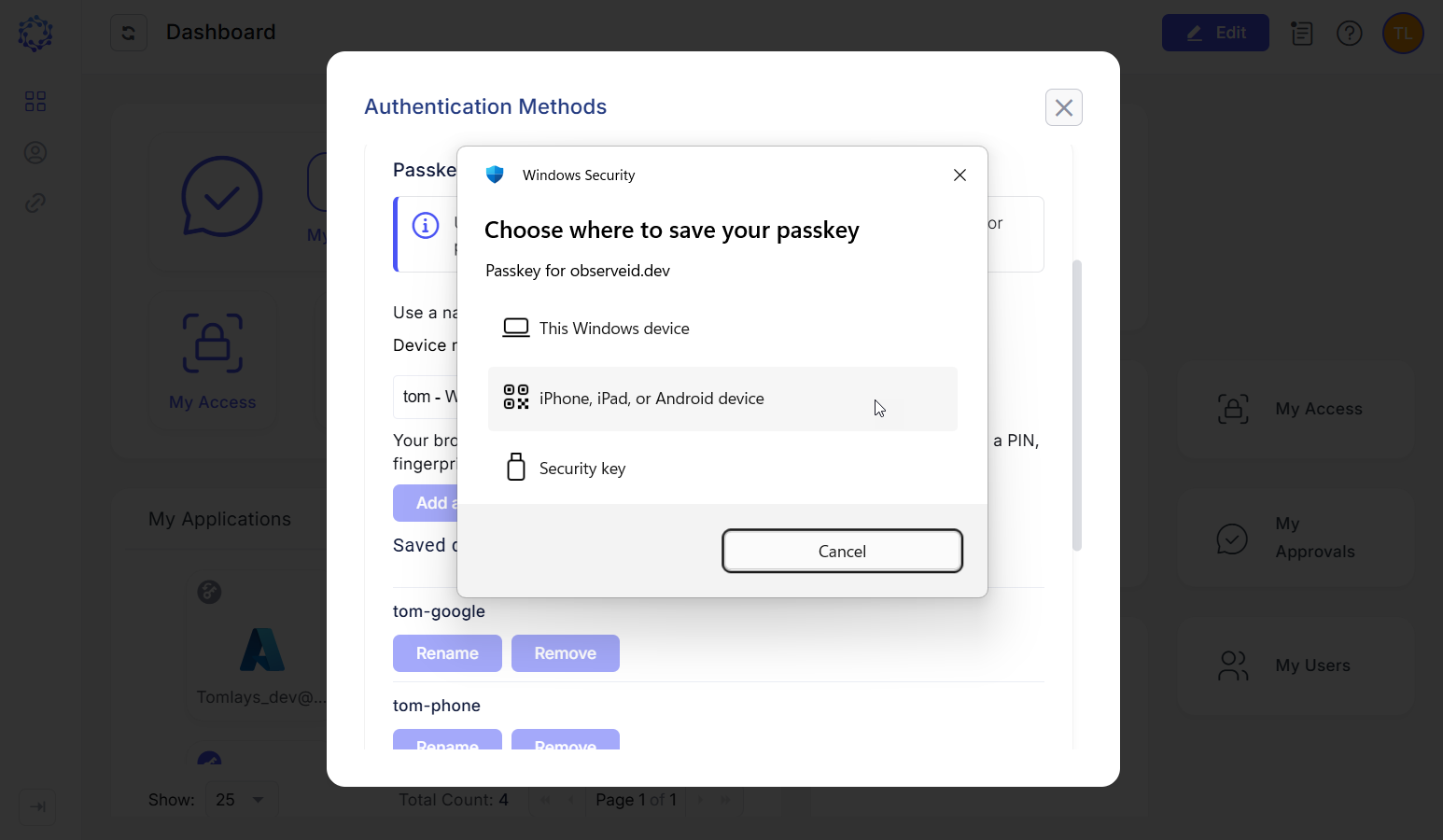 Selection of passkeys
Synced credentials support backup and use across devices through the provider’s protected synchronization system. Device-bound credentials remain restricted to their original authenticator. Both categories use cryptographic authentication; their principal differences concern portability, backup, and recovery.
Using a passkey from another device does not always mean copying it. For example, a phone may authorize a computer sign-in through a supported cross-device flow while retaining the credential on the phone.
The browser presents the registration and sign-in prompts, but it does not necessarily store the passkey itself. Check whether the selected destination is an operating-system authenticator, a password manager, or a security key.
How to register a passkey
You normally create a passkey through ObserveID’s registration process. Before you begin, decide on a storage option and whether you need synchronization across devices, storage restricted to one device, or a portable physical security key. Then prepare the authenticator by checking out its screen lock, PIN, biometrics, or provider account. When ready, follow the steps below:
-
Sign in to ObserveID using an existing method.
-
Open the available authentication settings.
-
In the passkey sign-in section, select Add a passkey.
-
Give the entry a recognizable name.
-
In the browser or system prompt, choose the intended device, provider, or security key.
-
Complete the requested local verification.
-
Wait for ObserveID to confirm registration.
-
Test sign-in by signing out and then signing in again. Select passkey verification, choose your registered passkey, and approve its use with your PIN or biometrics.
Keep an approved alternative sign-in or recovery method available. To use another independent device or security key, register another passkey, unless your selected provider already makes the existing credential available there.
The following sections explain the prerequisites and procedures for each storage option. Available choices depend on your ObserveID configuration, organization policy, operating system, browser, and provider.
Save a passkey on a phone
Check prerequisites
- iPhone: Use iOS 16 or later with a device passcode. For Apple storage, sign in to your Apple Account, enable two-factor authentication, and turn on iCloud Passwords and Keychain. Enroll Face ID or Touch ID if you want biometric approval.
- Android: Google Password Manager requires Android 9 or later and a screen lock. Use a compatible device with Google services, sign in to your Google Account, and check that Google Password Manager is your selected credential provider.
- Other providers: Install and unlock a passkey-capable manager. Select it in the phone's password/passkey AutoFill settings.
- Using a phone from a computer: Keep both devices nearby, online, and Bluetooth-enabled. Bluetooth verifies proximity; it does not copy the passkey to the computer.
Register a passkey
- Start registration in ObserveID on the computer.
- Choose iPhone, iPad, or Android device.
- Scan the displayed QR code with the phone camera.
- Select the intended provider, such as Apple Passwords or Google Password Manager.
- Approve with the device passcode, screen lock, biometrics, or provider PIN as prompted.
- Wait for ObserveID to confirm success.
Sign-in with a passkey
- Select Sign in with a passkey in ObserveID.
- Choose a phone option.
- Scan the displayed QR code with the phone camera.
- Choose the option to sign-in.
- Approve the use of the passkey with your PIN, Face ID, Touch ID or other biometrics.
Use Windows Hello
Check prerequisites
- Use Windows and current Edge or Chrome. Windows 11 provides passkey management in Settings.
- Open Settings > Accounts > Sign-in options. Configure a Windows Hello PIN. Fingerprint or face recognition is optional and requires compatible hardware.
- Press Windows + L and verify that the PIN or biometric method unlocks your session. This checks Hello, not whether a passkey exists for ObserveID.
- For local storage, check Settings > Accounts > Passkeys. A passkey saved locally with Windows Hello is device-bound and does not synchronize through a browser account. A working Hello PIN does not automatically register a passkey with ObserveID.
Register a passkey
-
Start registration in ObserveID on the computer.
-
Choose a Windows device option. It can be named differently depending on the configuration of your device. If the prompt defaults to another destination, choose the alternative-provider options, and select the Windows option.
-
Check the account and destination and click Continue.
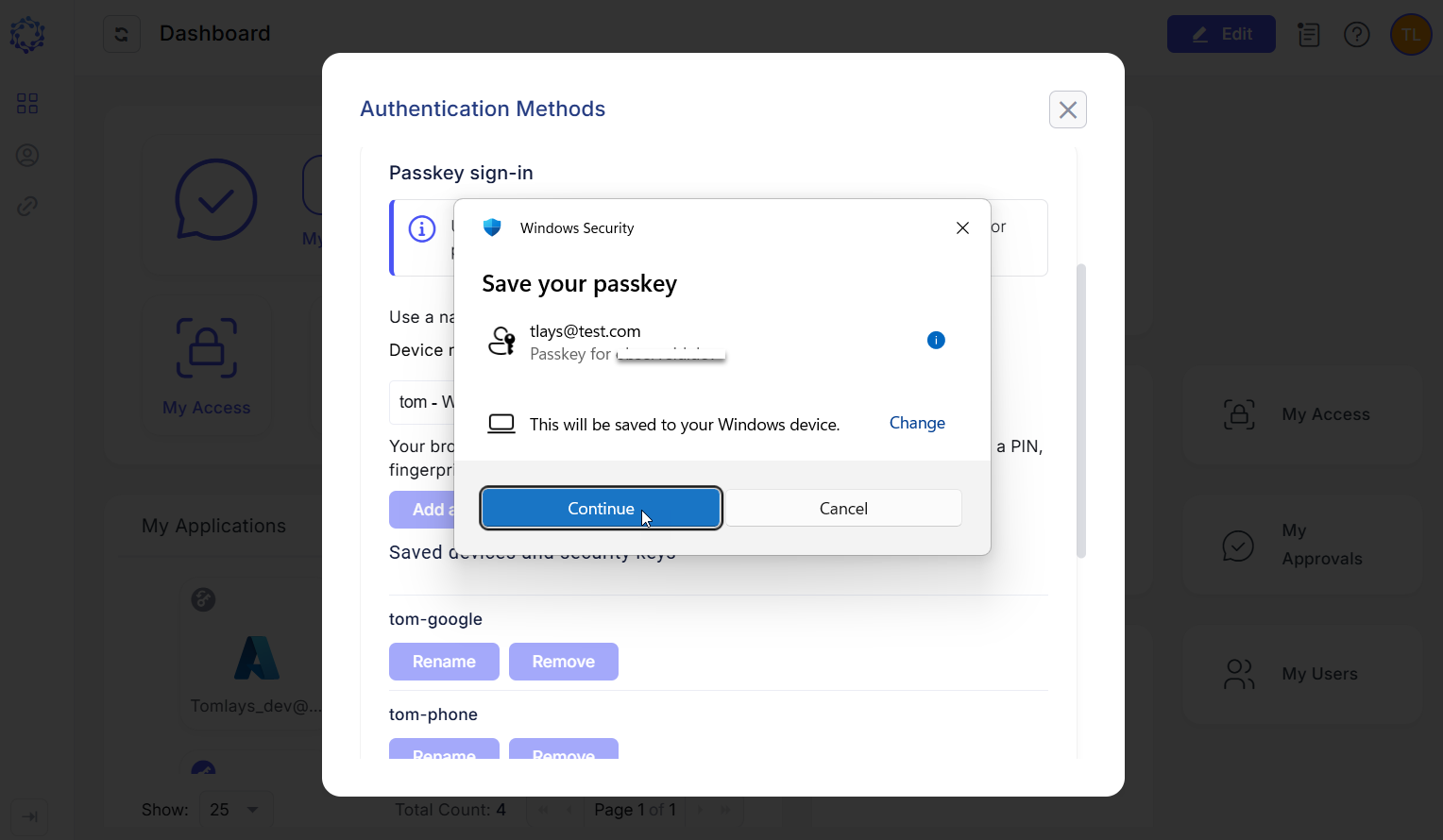 Windows passkey
-
Approve using your Hello PIN, fingerprint, or face. This is your local device verification, not your ObserveID password.
-
Wait for ObserveID to confirm the registration.
-
Open Settings > Accounts > Passkeys and find the ObserveID entry to check that a passkey is present.
Sign-in with a passkey
- Select Sign in with a passkey in ObserveID.
- Choose the credential stored on this Windows device. If necessary, open the prompt's other sign-in options.
- Approve the use of the passkey with your PIN, or other biometrics.
Use a passkey on a Mac
Check prerequisites
- Use Mac and current Safari. Make sure you know your Mac login password. On compatible hardware, enroll a fingerprint in System Settings > Touch ID & Password.
- For Apple storage, sign in to your Apple Account, and turn on System Settings > your name > iCloud > Passwords & Keychain.
- Apple Passwords manages credentials; iCloud Keychain synchronizes them across approved Apple devices.
- Apple-synced passkeys are not restricted to the Mac where you created them. A Mac can also use a passkey on a nearby iPhone through a QR code; in that case, Face ID or Touch ID runs on the phone.
Register a passkey
- Start registration in ObserveID in Safari.
- Choose the option to save with Apple Passwords/iCloud Keychain on the Mac. Do not select a nearby phone or physical key if your intended provider is Apple on the Mac.
- Check the account and destination and click Continue.
- Approve with Touch ID or the local verification offered by macOS.
- Wait for ObserveID to finish registration.
- Open the Passwords app and find the ObserveID entry to check that a passkey is present.
Sign-in with a passkey
- Select Sign in with a passkey in ObserveID.
- Choose the registered account from the Apple credential prompt.
- Approve with Touch ID or another offered local verification method.
Use a browser passkey provider
The browser presents the passkey request; the selected authenticator or provider stores the credential. "Saved in the browser" may mean Google Password Manager, Microsoft Password Manager, an extension, or an operating-system provider. Always check the actual destination.
Check prerequisites
- Use Edge or Chrome. Allow passkeys under your browser policies. Use your normal, trusted browser profile.
- Chrome / Google Password Manager: Sign in to the Google Account. Enable passkey saving and synchronization across devices.
- Edge / Microsoft Password Manager: Sign in to the Microsoft Account. Enable passkey saving and synchronization across devices.
- Extensions: For 1Password, Bitwarden, or another supported manager, install the official app/extension and unlock it. Enable its passkey handling. A password-only extension cannot store passkeys.
Register a passkey
-
Start registration in ObserveID in the relevant browser.
-
Select Google Password Manager, Microsoft Password Manager, or your intended extension/provider. If the prompt defaults to another destination, choose the alternative-provider options.
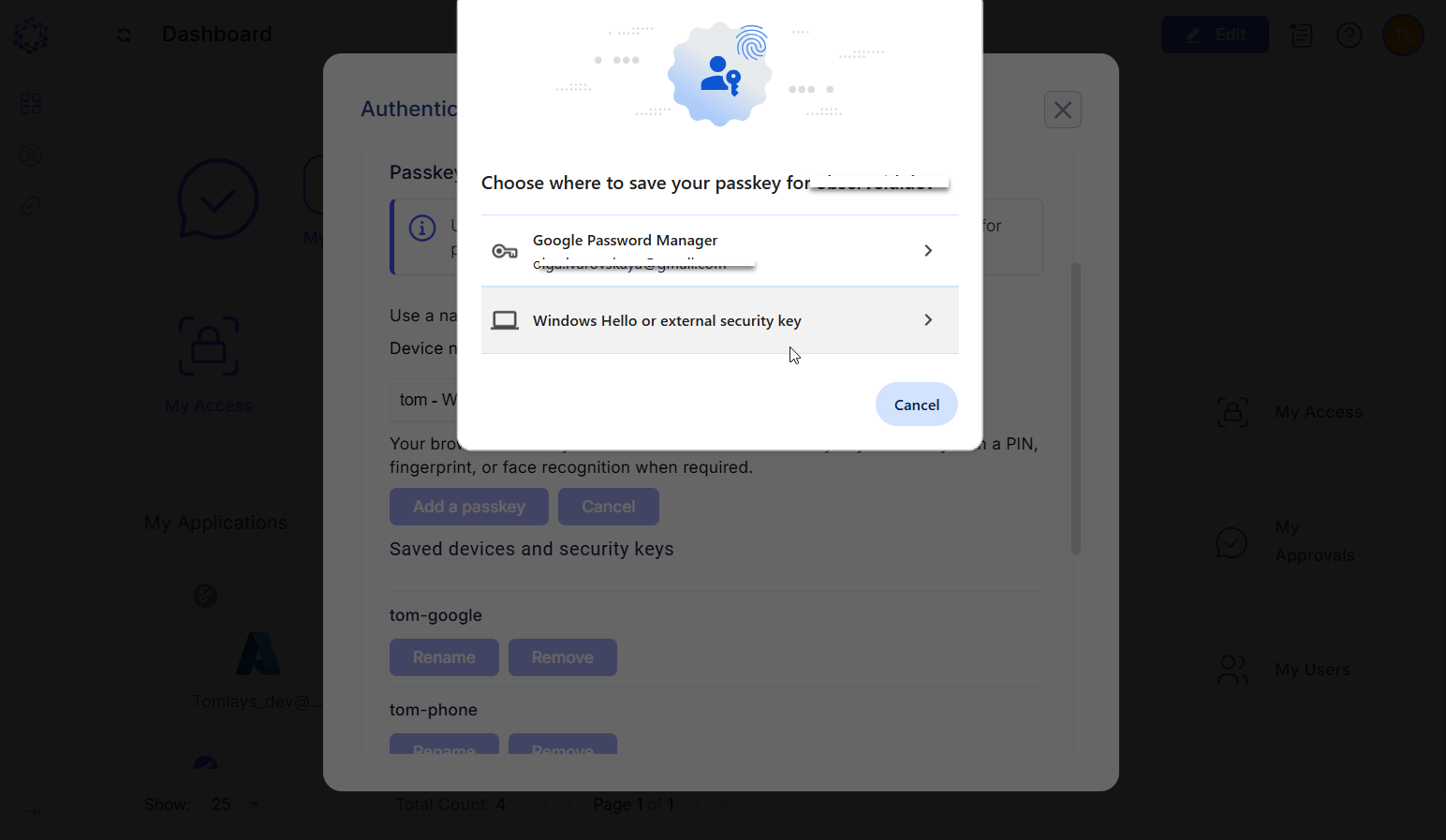 Google passkey
-
Check the account and destination and click Create.
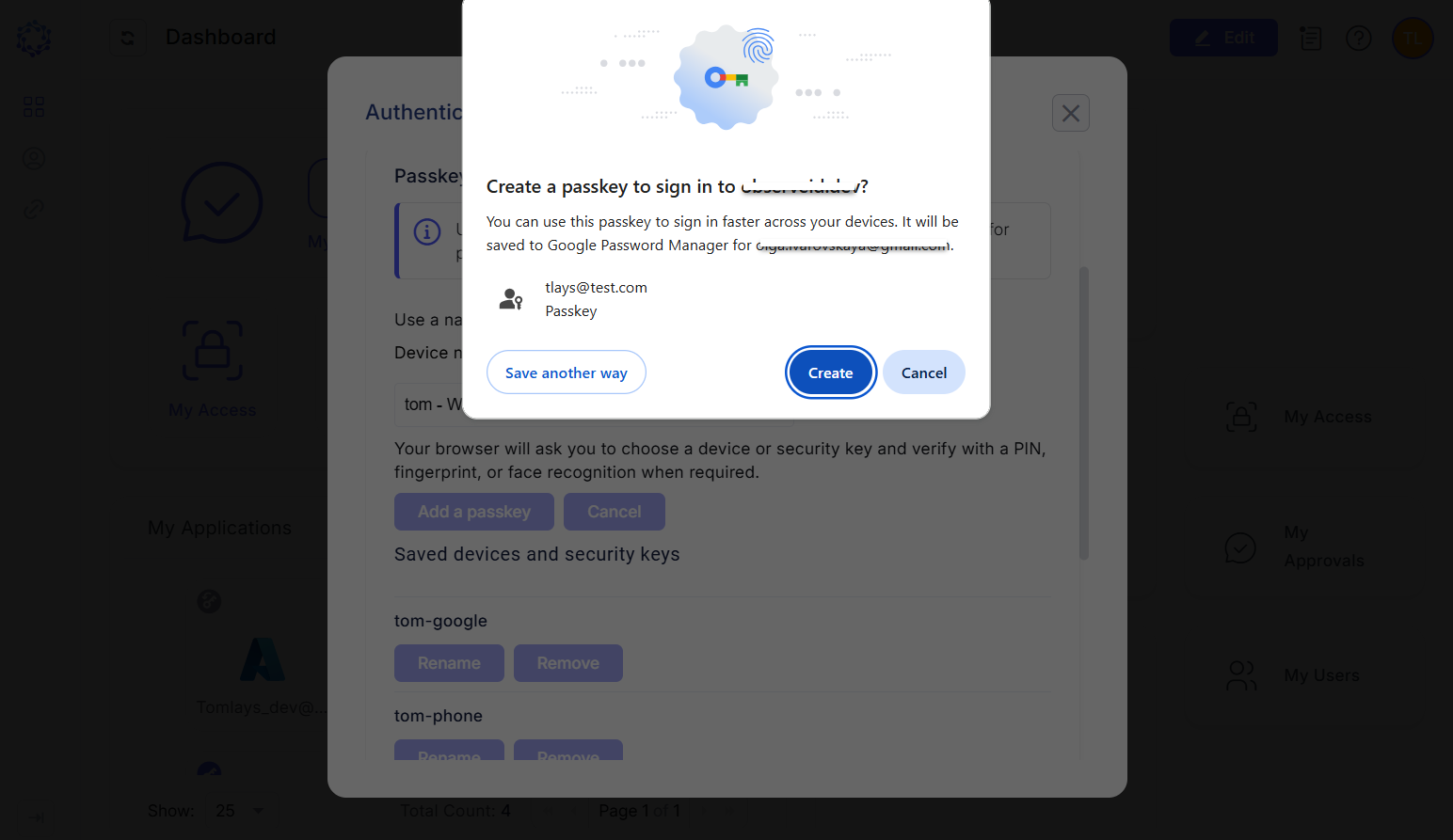 Google password manager
-
Confirm using the provider PIN, vault unlock, or local verification requested.
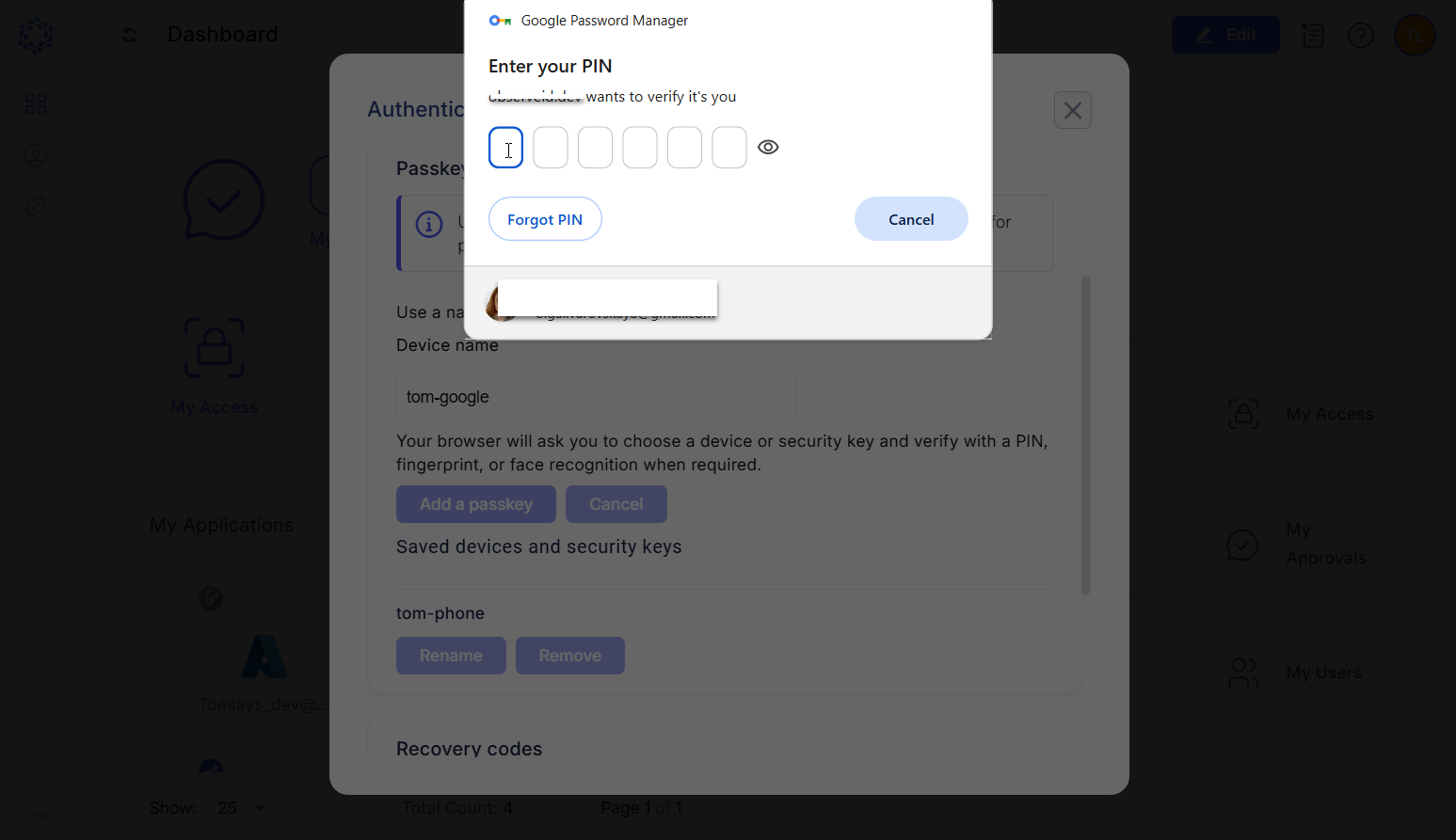 Enter PIN
-
Wait for ObserveID to finish registration.
-
Check the saved entry in the chosen manager.
Sign-in with a passkey
-
Select Sign in with a passkey in ObserveID.
-
Choose the saved passkey from your provider.
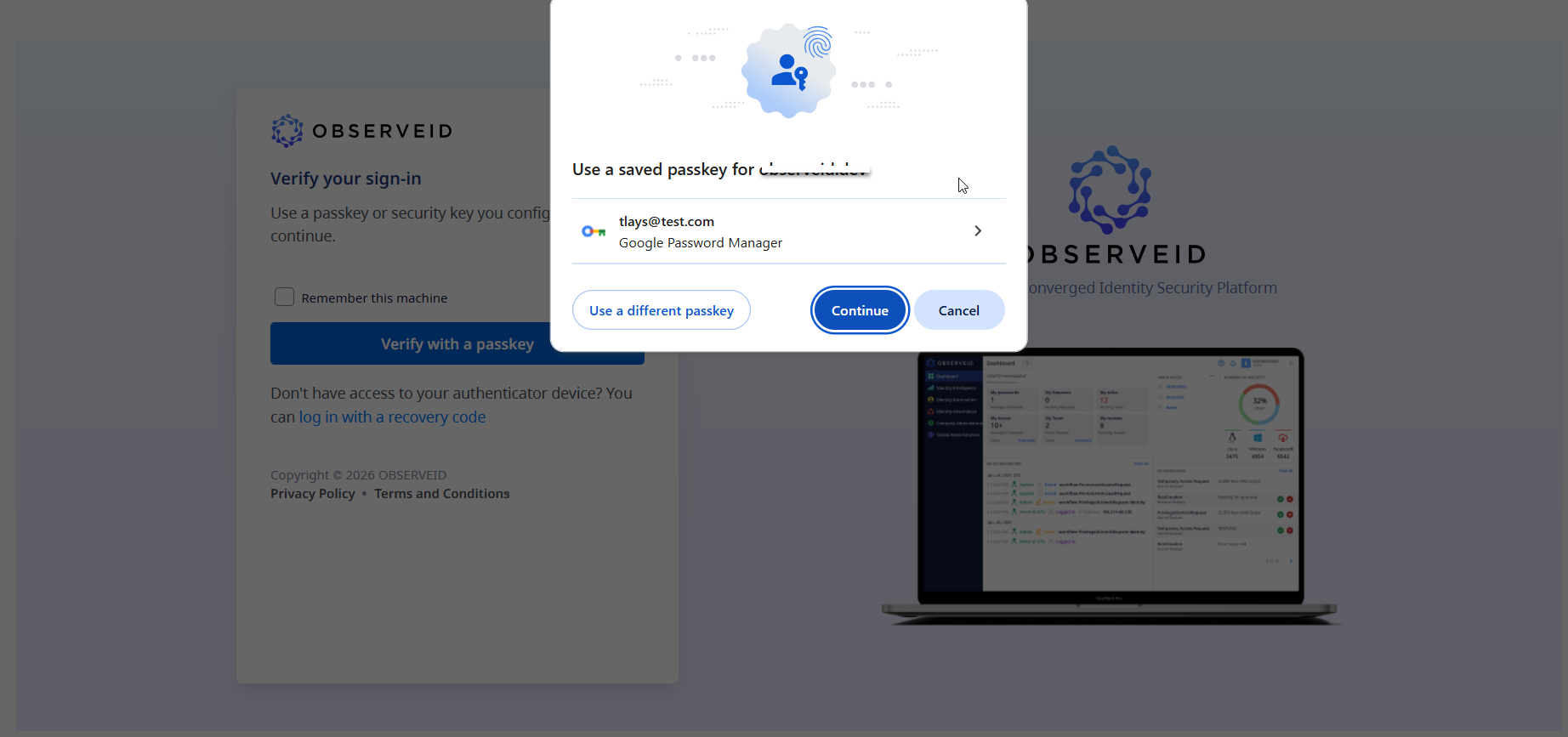 Google passkey
-
Approve its verification prompt with the PIN or another offered local verification method.
Note please that a setting such as "Use Windows Hello when filling passwords" only protects password autofill. If a QR code or security-key prompt appears instead, open other options and choose the correct provider. If the passkey remains unavailable, check the provider account, vault unlock, exact ObserveID address, and policy.
Use a FIDO2 security key
Check prerequisites
- Use a FIDO2 security key that supports discoverable passkeys, such as a compatible YubiKey 5 or Yubico Security Key series model.
- Check the connector: USB-A, USB-C, or supported NFC. For NFC, the device needs a compatible reader.
- Set a FIDO2 PIN using the supported key-management tool. For YubiKey, Yubico Authenticator can manage this PIN. Biometric models may also support enrolled fingerprints.
- Keep another approved authenticator available; key-bound passkeys do not synchronize.
- The security-key PIN is separate from your Windows Hello PIN and ObserveID password. Do not reset the key to troubleshoot a forgotten PIN without checking the consequences: a FIDO2 reset deletes its FIDO credentials. If lost, report it and remove its ObserveID registration using an alternative method or IT support.
Register a passkey
- Connect the key.
- Start registration in ObserveID.
- In the provider prompt, select Security key. If necessary, choose other options.
- Enter the key's FIDO2 PIN when requested. Touch its contact, or follow the supported NFC/fingerprint prompt. Touching the contact confirms presence; it is not necessarily a fingerprint check.
- Wait for ObserveID to finish registration.
Sign-in with a passkey
- Select Sign in with a passkey in ObserveID.
- Choose Security key.
- Insert the registered key.
- Enter its FIDO2 PIN or use its biometric verification as prompted, touch the key when requested.
- Wait for sign-in to complete.
- Remove the key when no longer needed.
Check the result and get help
After registering any passkey, consider the following:
- Keep your current session open and test sign-in in a separate browser session where possible. Confirm that you can reach the correct ObserveID account before relying on the new credential.
- Check both the ObserveID registration and the selected provider's saved credential. These are separate records. Removing one does not necessarily remove the other.
- If the registration or sign-in option is unavailable, contact your administrator.
- If local biometric verification fails, use the legitimate fallback offered by the device/provider. Contact your administrator if no fallback is available.