
Register Authenticator App
An authenticator app is a multi-factor authentication (MFA) method that provides an additional layer of security when signing in to ObserveID with a password. Depending on your organization's authentication policies and your account configuration, MFA may be required or optional.
An authenticator app generates time-based one-time passwords (TOTP), which are short-lived verification codes. During sign-in, after you enter your ObserveID password, you may be prompted to enter the current code from your registered authenticator app. ObserveID independently calculates the expected code using a shared secret established during registration and verifies the code you enter.
ObserveID supports Microsoft Authenticator and Google Authenticator. You can install either app on your mobile device and register it with your ObserveID account. Once configured, the app can generate verification codes without an internet connection. This section explains how to register an authenticator app with ObserveID and use it to complete MFA verification during sign-in.
Prerequisites for using an authenticator app
Before setting up an authenticator app in ObserveID, download and install one of the following supported apps on your mobile device:
- the
Microsoft Authenticatorapp- for Android: https://go.microsoft.com/fwlink/?Linkid=825072
- for iOS: https://go.microsoft.com/fwlink/?Linkid=825073
- the
Google Authenticatorapp
Set up an authenticator app
-
Hover over your profile icon in the upper-right corner of the screen.
-
From the profile menu, select Authentication Methods.
-
Select the Set Up Authenticator app option.
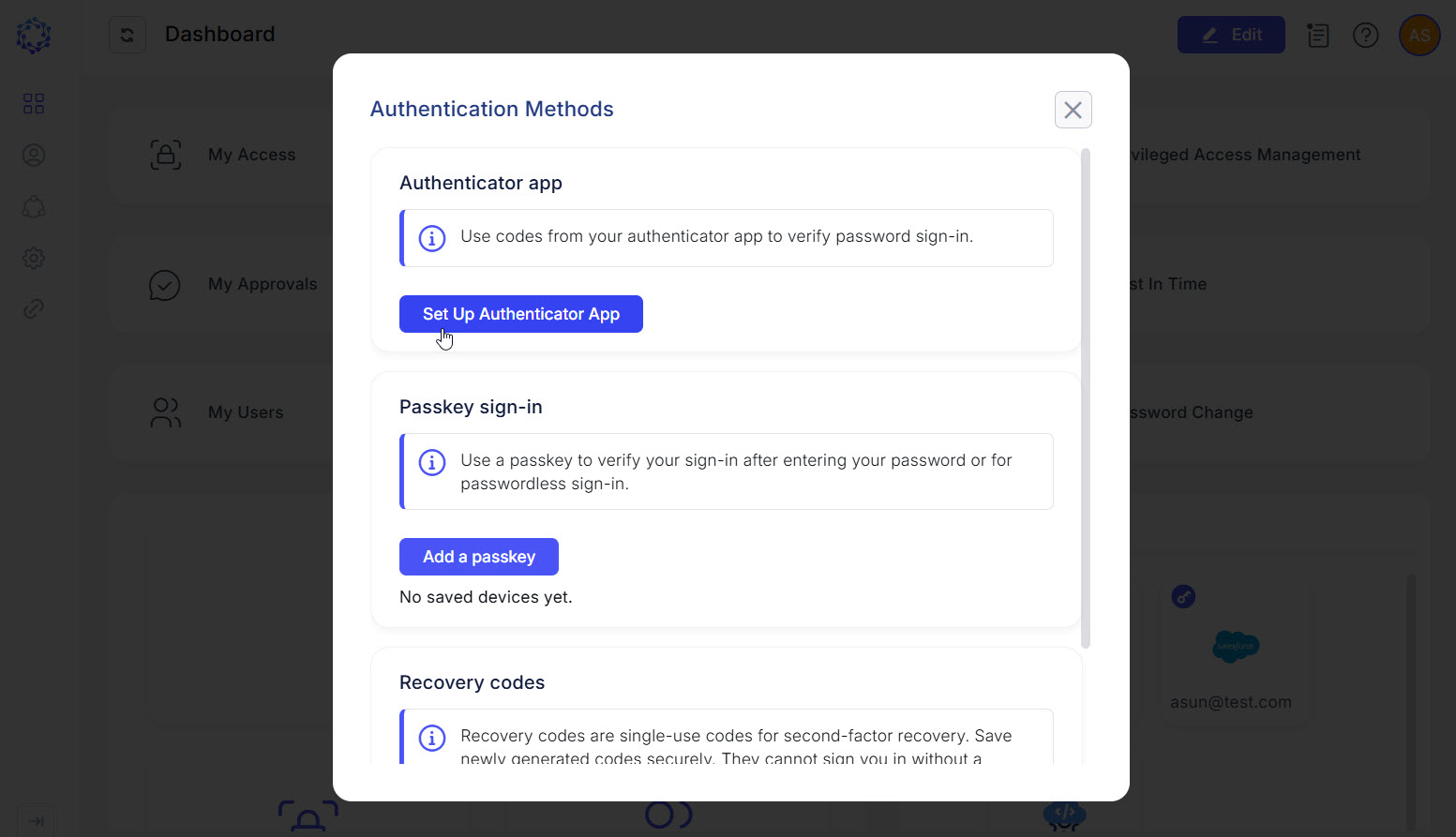 User settings
-
The dialog displays a QR code containing the secret key used to register an authenticator app with your ObserveID account. Treat this QR code as sensitive information. Do not share it or allow anyone else to scan it.
-
Open the authenticator app on your mobile device and select Scan QR code.
-
Use your device's camera to scan the QR code displayed in the ObserveID dialog.
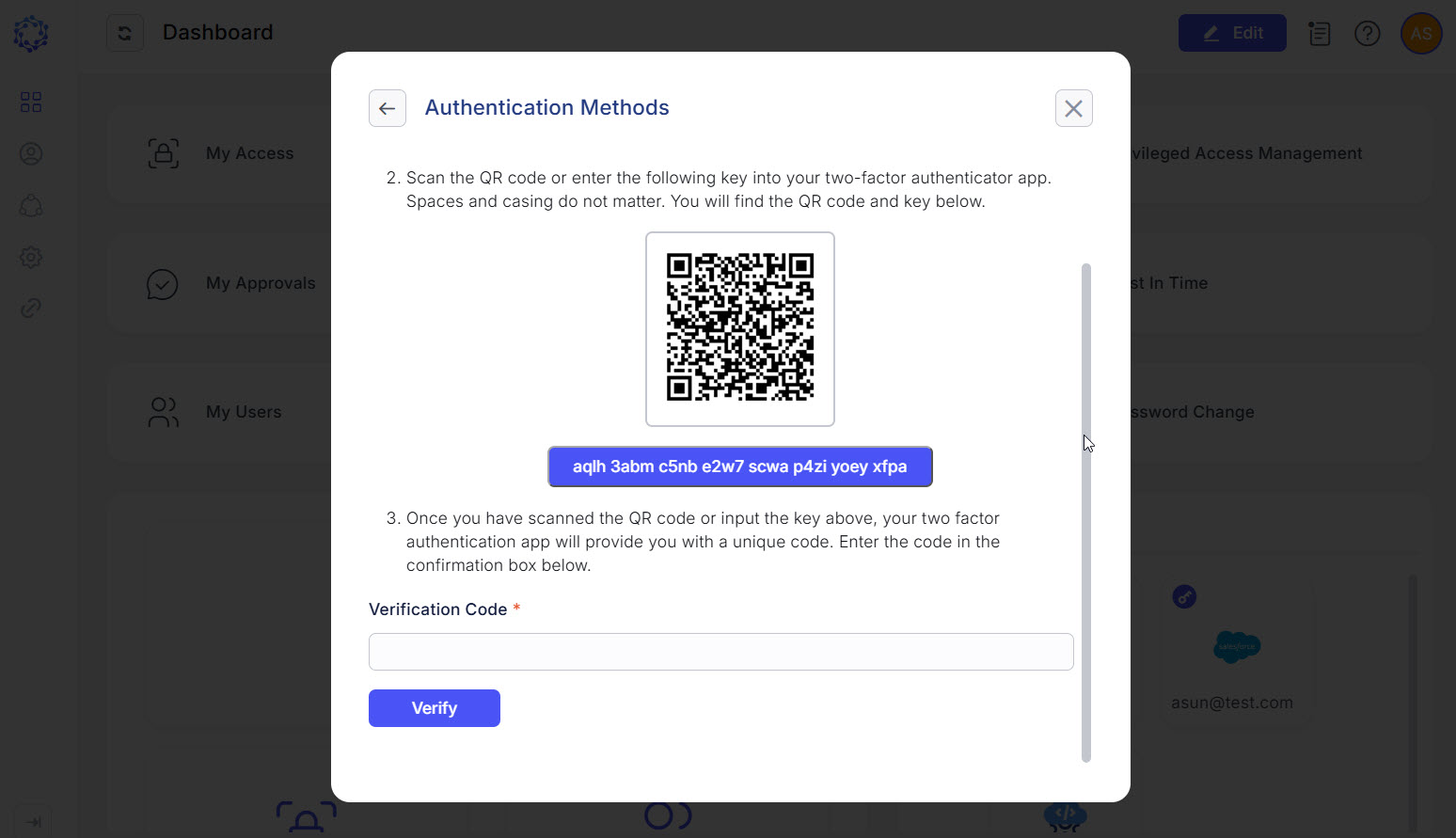 Scanning the QR code
-
A new ObserveID account entry appears in the authenticator app on your mobile device. The app generates a time-based verification code. Enter the current code in the Verification Code field in ObserveID, and select Verify.
-
After your authenticator app is successfully registered and verified, ObserveID displays your recovery codes. Store these codes securely and separately from your password and authentication devices.
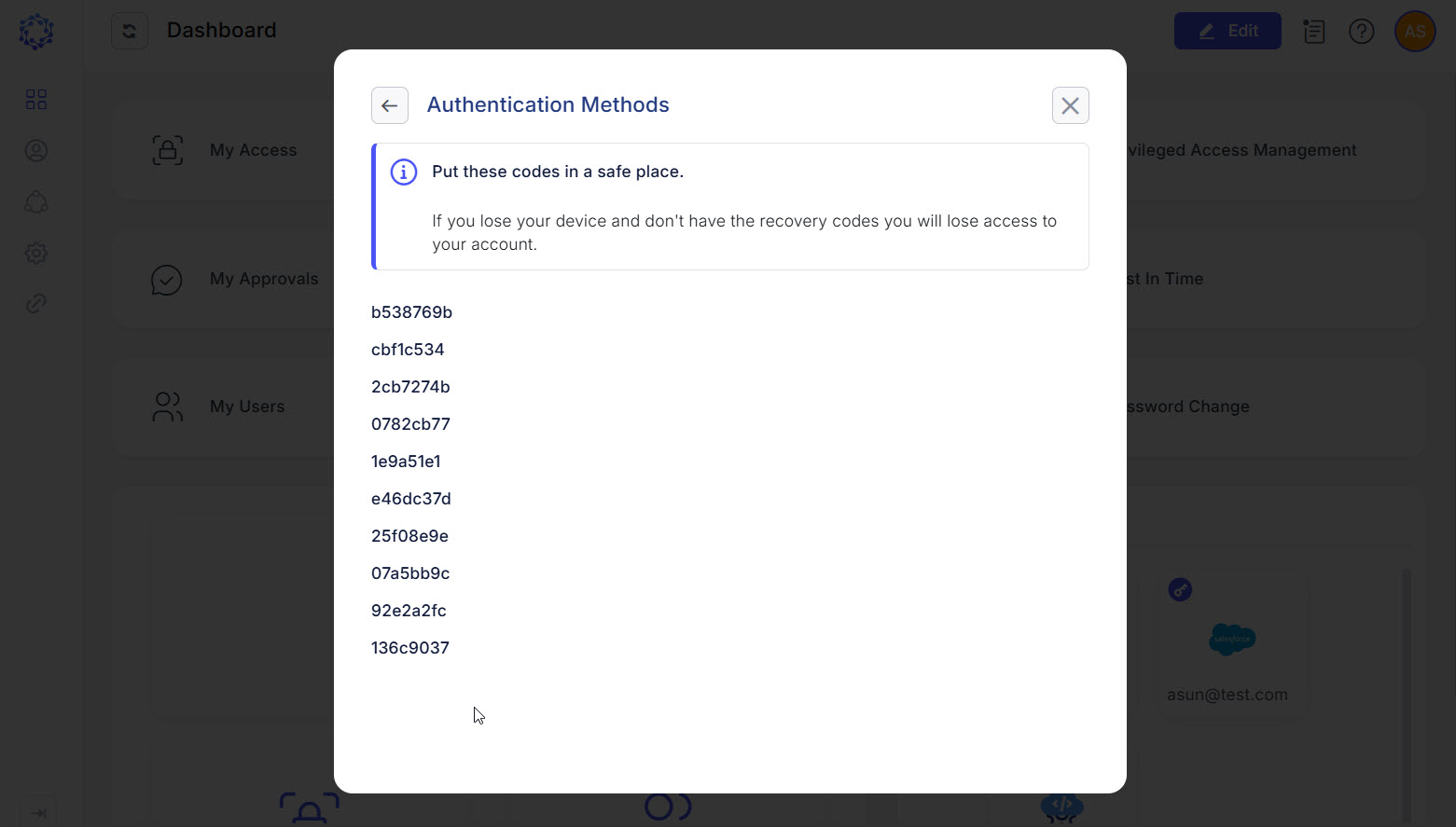 Recovery codes
The next time you sign in to ObserveID, you will be prompted to enter a verification code from your registered authenticator app after entering your password.